How to perform the Cervical Range of Motion (ROM) assessment

By Cassie Anderson PT, DPT

This quick guide provides information on how to perform the Cervical Range of Motion (ROM) assessment on the Virtualis BalanceVR and PhysioVR solutions. For additional information, please refer to the Cervical Range of Motion user manual.


Equipment needed

To view equipment needed, click on the "i" icon in the upper right corner of the module.
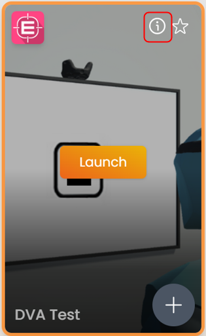


To perform Cervical ROM, you will need the VR headset and one hand controller.


Patient setup

To reduce compensatory motions beyond the cervical spine, the patient should be seated in a chair with a counter-hold applied to the shoulders by the tester.


Test procedure

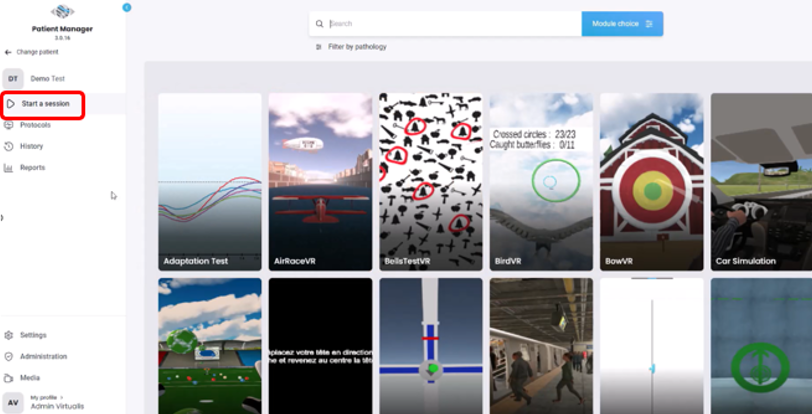
1. Open a patient profile.

2. Click on "Start a session" to access the module list.
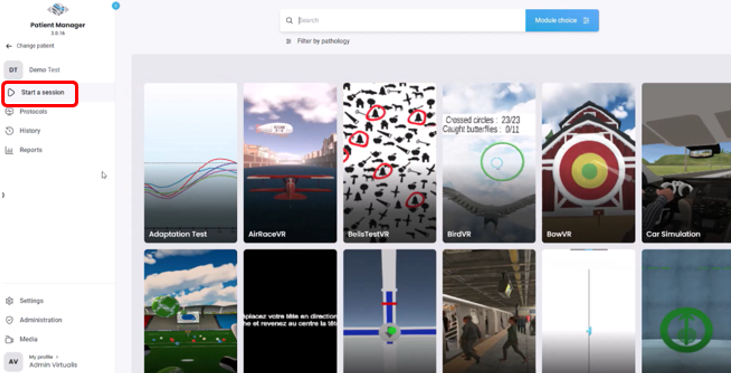


3. Type "Cervical Range of Motion" in the search bar. The first three letters are often enough.

4. Click on the Cervical Range of Motion button to launch the module.

5. Select the 'Automatic validation' option if you would like the measurements to be automatically validated.
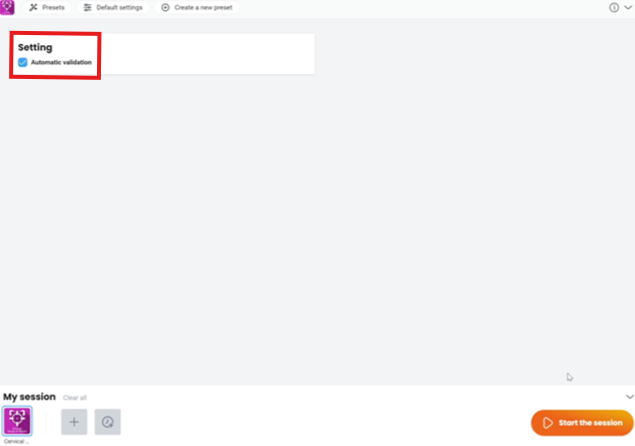


6. Next, click on "Start the session".


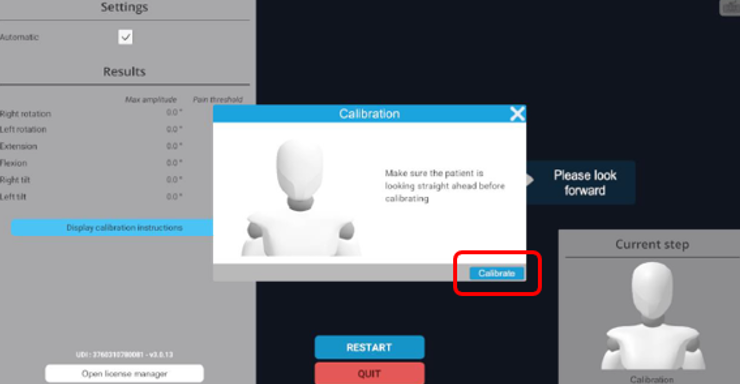
7. Before beginning the assessment, instruct the patient to look straight forward, then press "Calibrate".


8. The VR headset will provide prompts that guide the patient in performing the intended movement.
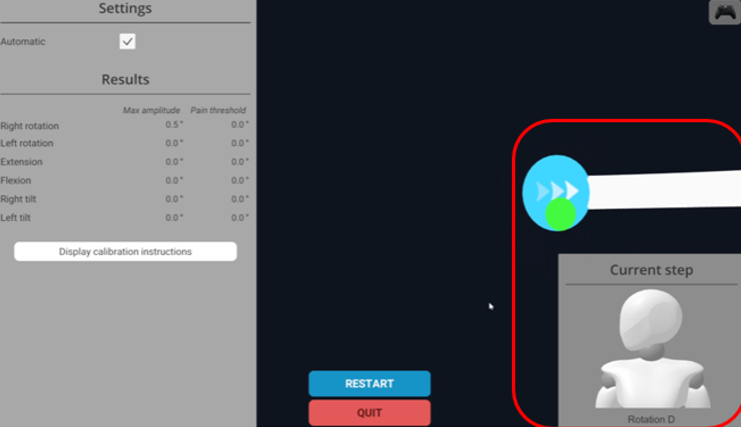


The movements are assessed in the following sequence:

  1. Right cervical rotation
  2. Left cervical rotation
  3. Cervical extension
  4. Cervical flexion
  5. Right cervical side bending
  6. Left cervical side bending


9. If the 'Automatic validation' setting was selected, the movements will be sequenced together. If it was not selected, you will need to press "enter" on the keyboard to move to the next movement.

10. There are two options to measure the patient's pain threshold:

a. The patient holds one hand controller and presses the larger button on the top when they have pain. This is the preferred method for improved accuracy of pain threshold recording.

b. The clinician presses the "backspace" key on the keyboard when the patient reports pain.

11. When all six movements are recorded, press "Quit" to exit the module.
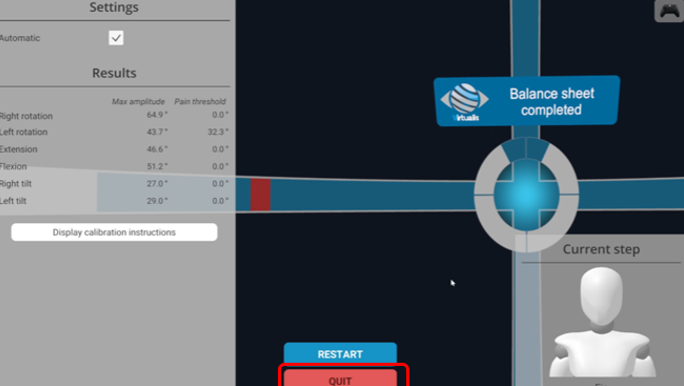


12. To view results, click on the graph icon at the top of the screen. Data points (in degrees) are provided for:

  • Flexion
  • Extension
  • Right rotation
  • Left rotation
  • Right tilt
  • Left tilt


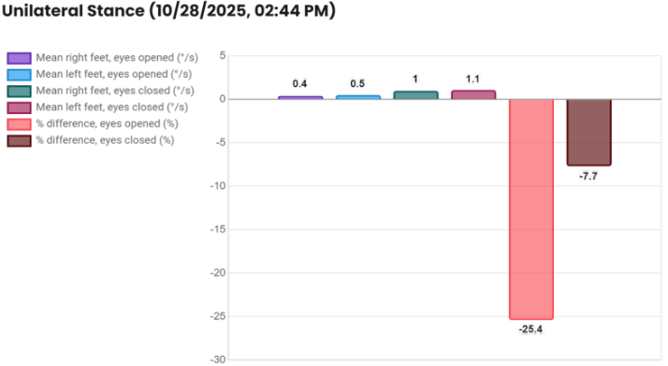
Bar graph


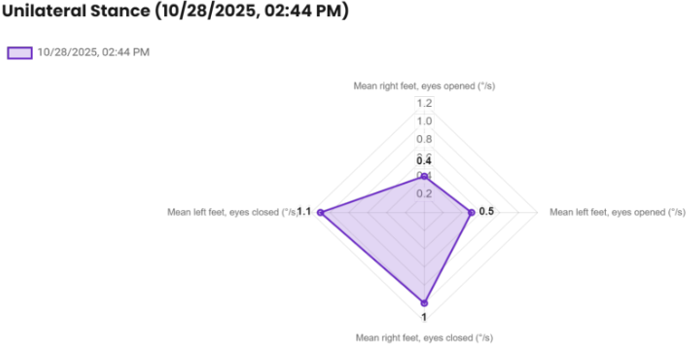
Radar plot


You can also add individual graphs to a report or export results to a .csv file.

Presenter

Cassie Anderson PT, DPT

Cassie Anderson PT, DPT

Global Clinical Educator for Balance Rehabilitation, Interacoustics A/S Cassie holds her Doctorate in Physical Therapy and has served as a licensed physical therapist for 11 years. She began her career in the inpatient rehab setting working primarily with patients post stroke then transitioned to the outpatient setting working primarily with the vestibular/balance population in a multidisciplinary ENT and neurology clinics. Cassie has participated in research and quality improvement projects aimed at incorporating technology into clinical practice and has presented at both the national and international level.

Available Training

How to perform the DVA Rehab module

Learn how to perform the DVA Rehab module with the Virtualis BalanceVR system. Read more.

Cassie Anderson PT, DPT2026-10-02

How to Perform the DVA Test Module

Learn how perform the DVA Test module with the Virtualis BalanceVR system. Read more.

Cassie Anderson PT, DPT2026-10-02

How to Perform the Head-Eye Coordination Module

Learn how to perform the Head-Eye Coordination module with the BalanceVR solution for vestibular and balance rehabilitation.

Cassie Anderson PT, DPT2026-10-02

How to set up your HTC Vive Focus Vision VR headset in the morning

Learn how to set up your HTC Vive Focus Vision VR headset in the morning, used alongside the Virtualis BalanceVR software. Read more.

Cassie Anderson PT, DPT2026-10-02

How to create a protocol

This quick guide provides information on creating a protocol under a patient profile in the Virtualis BalanceVR system.

Cassie Anderson PT, DPT2026-10-02

How to create a report

This quick guide provides information on viewing patient results, creating a patient report, and exporting the report to a PDF with the Virtualis BalanceVR.

Cassie Anderson PT, DPT2026-10-02

How to navigate the software modules

This quick guide provides information on how to view and navigate the software modules in the Virtualis BalanceVR system.

Cassie Anderson PT, DPT2026-10-02

How to perform a room setup

This quick guide provides information on how to complete a room setup in the SteamVR application for the HTC Vive Pro 2 VR headset. For use with the BalanceVR.

Cassie Anderson PT, DPT2026-10-02

How to perform SVV with the Virtualis BalanceVR and PhysioVR

In this video, you will learn how to perform Subjective Visual Vertical (SVV) testing with the Virtualis BalanceVR system. Watch the video here.

Interacoustics2026-10-02

How to set the patient up with the Virtualis VR headset and accessories

In this video, you will learn how to set the patient up with the Virtualis VR headset and accessories. For use with BalanceVR.

Interacoustics2026-10-02

How to set up profiles

This quick guide provides information on setting up practitioner and patient profiles and creating a prescriber in the Virtualis BalanceVR system. Read more.

Cassie Anderson PT, DPT2026-10-02

How to set up your patient with the Virtualis VR headset

Learn how to set up and use your Virtualis VR headset so you are ready to start testing your patient.

Interacoustics2026-10-02

How to set up your portable Virtualis solution

Learn how to set up your portable Virtualis solution and what's included with your system.

Interacoustics2026-10-02

How to swap the battery in your Virtualis VR headset

Learn how to swap the battery in your Virtualis VR headset and keep sessions flowing without interruption.

Interacoustics2026-10-02

How to update software modules

This quick guide provides information on how to update the software modules in the Virtualis BalanceVR system.

Cassie Anderson PT, DPT2026-10-02

How to navigate the menus in the HTC Vive Focus Vision VR Headset

Learn how to navigate the menus in the HTC Vive Focus Vision VR Headset, used with the Virtualis BalanceVR software. Read more.

Cassie Anderson PT, DPT2026-10-02