
How to perform the Supermarket Scrolling module
This quick guide provides information on how to perform the Supermarket Scrolling module on the Virtualis StaticVR and MotionVR solutions. For additional information, please refer to the Supermarket Scrolling user manual.
Equipment needed
To view the equipment needed, click on the "i" icon in the upper right corner of the module. To perform the Supermarket Scrolling module, you will need either the static or dynamic force plate.
The VR headset is optional for this module, however if you do not use the VR headset you will need a secondary screen to perform in “Screen Mode.”
Patient setup
The patient will need to be standing to perform this module.
Test procedure
1. Open a patient profile.
2. Click on "Start a session" to access the module list.
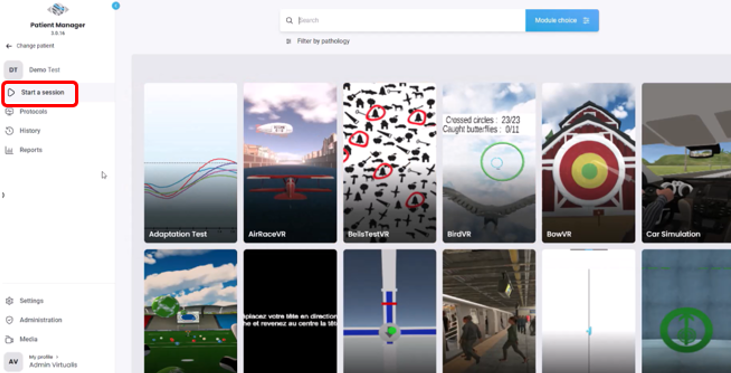
3. Type "Supermarket Scrolling" in the search bar. The first three letters are often enough.
4. Click on the Supermarket Scrolling button to launch the module.
5. Select the initial settings either manually (right side of screen) or by selecting the available presets (left side of screen).
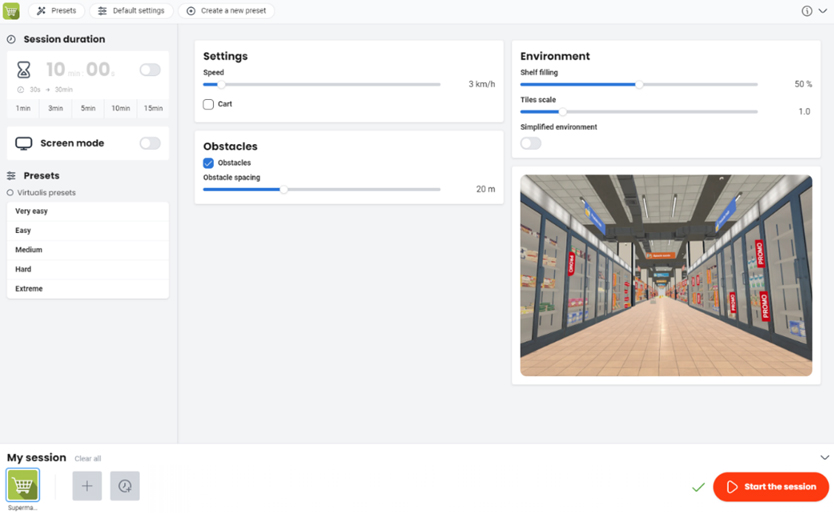
- Settings
- Speed: visual flow of the environment. Value: 0 to 50 km / hr.
- Cart: when selected, a cart appears in front of the patient in the environment.
- Cart height: height of handle.
- Height preset: available on MotionVR solutions and number corresponds to the preset height of the MotionVR ring.
- Obstacles: when selected, obstacles appear in the environment for the patient to weight shift around.
- Obstacle spacing: distance between obstacles. Value: 5 to 50 meters.
- Environment
- Shelf filling: amount of objects on the shelves. Value: 0 to 100%.
- Tile scale: size of floor tiles. Value 0.2 to 5.0.
- Simplified environment: option to decrease complexity of environment.
6. Once settings have been finalized, click on "Start the session".
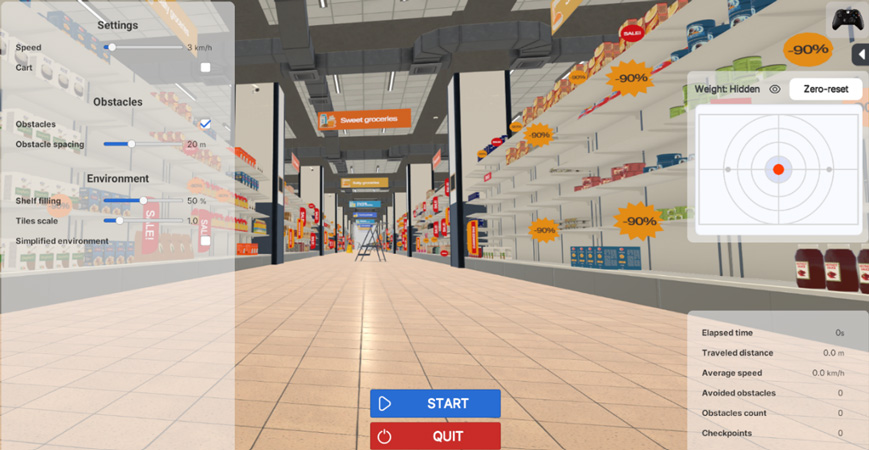
7. Before the patient steps on the force plate, click "Tare." This will set the weight on the force plates to zero.
8. Give patient instructions based on the goal of your therapy session.
- Balance control example: "Shift your weight left and right to avoid the obstacles in front of you."
- Habituation example: “Look forward/around the environment. Report any change in your symptoms.”
9. Assist the patient on the force plates.
10. If using the VR headset, fit them on the patient's head. Have the patient look forward, and press "C" on the keyboard to center the image in the VR headset.
11. Press "Start" to begin the module.
12. Perform real-time progressions by changing the parameters on the left side of the clinician screen (see below) or by using the shortcut keys. Patients cannot see these adjustments.
In general, increasing the speed, number of obstacles, shelf filling, and the tile scale will increase the complexity of the task.
13. You can access information on the shortcut keys by clicking on the Xbox remote in the upper right corner.
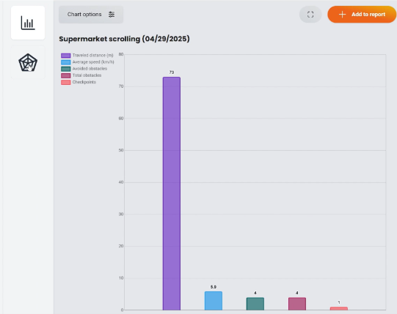
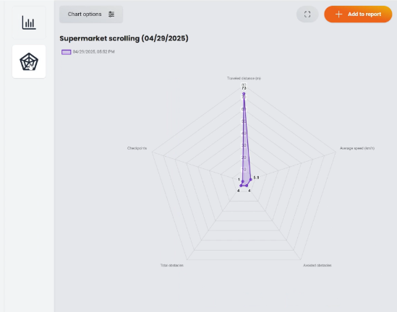
14. When the module is complete, you can view the results by selecting the histogram icon.

Data points: traveled distance (m), average speed (km/hr), number of avoided obstacles, total number of obstacles, number of checkpoints passed, duration.
Presenter

Cassie Anderson PT, DPT
Global Clinical Educator for Balance Rehabilitation, Interacoustics A/S Cassie holds her Doctorate in Physical Therapy and has served as a licensed physical therapist for 11 years. She began her career in the inpatient rehab setting working primarily with patients post stroke then transitioned to the outpatient setting working primarily with the vestibular/balance population in a multidisciplinary ENT and neurology clinics. Cassie has participated in research and quality improvement projects aimed at incorporating technology into clinical practice and has presented at both the national and international level.