
How to perform Pupillometry

By Dr Liz Fuemmeler

Pupillometry is the measurement of pupil size and reactivity and is a key part of a routine clinical neurological examination. This quick guide will demonstrate how you can use the Pupil Diameter function available in the VisualEyesTM software to perform pupillometry, which you can activate through the test settings (Figure 1).
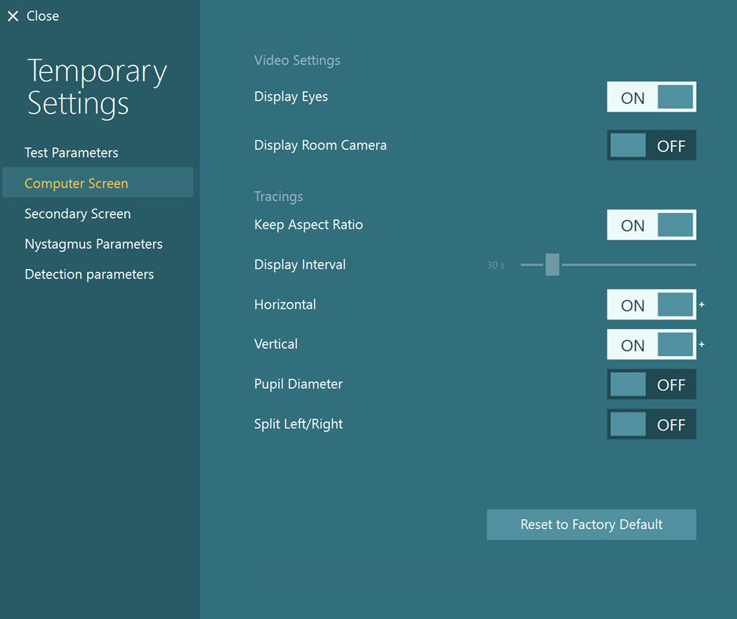


The ability to toggle Pupil Diameter on or off is located in the Computer Screen tab under Temporary Settings.
Figure 1: You can turn on Pupil Diameter through the test settings.


Pupil diameter is reported in millimeters (mm) for maximum clinical impact and correlation. In addition, there is an added tool to mark the pupil diameter and get an exact measurement of pupil size at a specific time point (Figure 2).
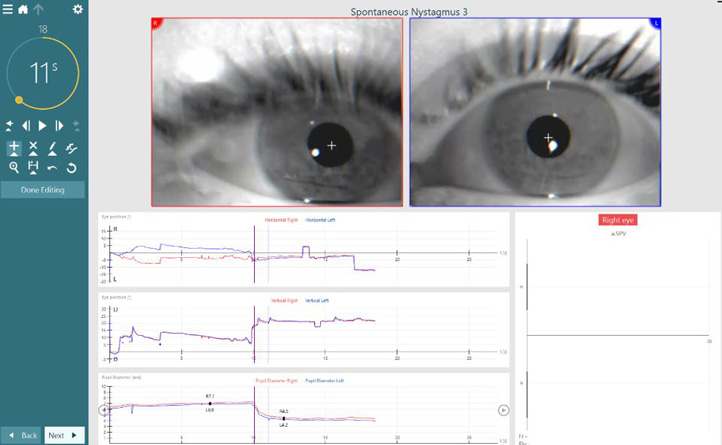
 

Figure 2: This example shows a patient in Spontaneous Nystagmus testing. Here, the keyboard marker (vertical black line) represents when the goggle cover was taken off and pupils were exposed to room light. You will see the pupil diameter is marked in two time points (around 7 and 12 seconds). The R represents the pupil diameter in mm for the right pupil. The L represents the left pupil.


How to add a marker and measure pupil diameter

Make sure Pupil Diameter is enabled through the settings. You can do this before or after test collection.

After you have collected test data, go to 'Edit Tools', 'Add Beat' ( '+' sign) and click on the Pupil Diameter graph where you wish to measure. You can add multiple measurements (Figure 3).
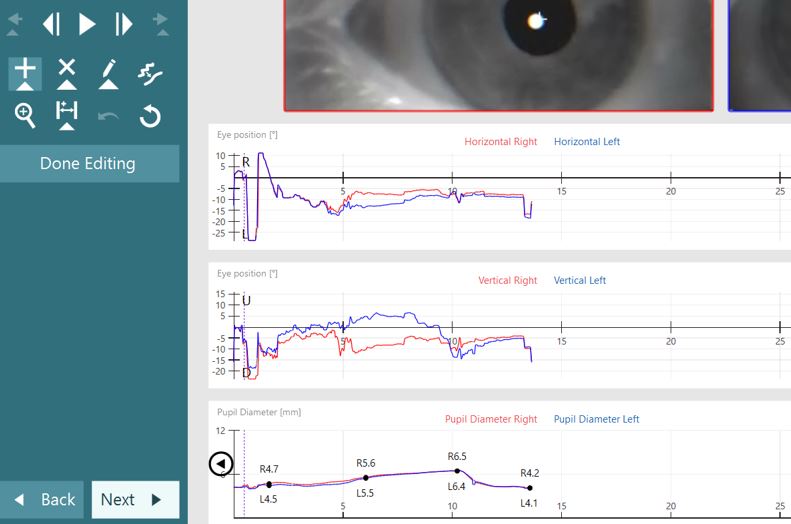
 

The Pupil Diameter graph is below the horizontal and vertical eye tracing graphs. It has mm as a function of time for the right and left eyes. In this example, the user has added four measurements in the 0 to 15 second range.
Figure 3: Adding a pupil measurement.


How to remove a pupil measurement

You can remove measured pupil diameters by selecting the X and clicking on the point you wish to remove (Figure 4).
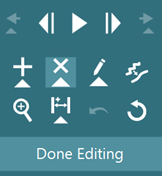
 

Figure 4: Removing a pupil measurement.


Data and report

The measured numbers will be displayed at the bottom of the printout for left and right eyes at the corresponding time (Figure 5).
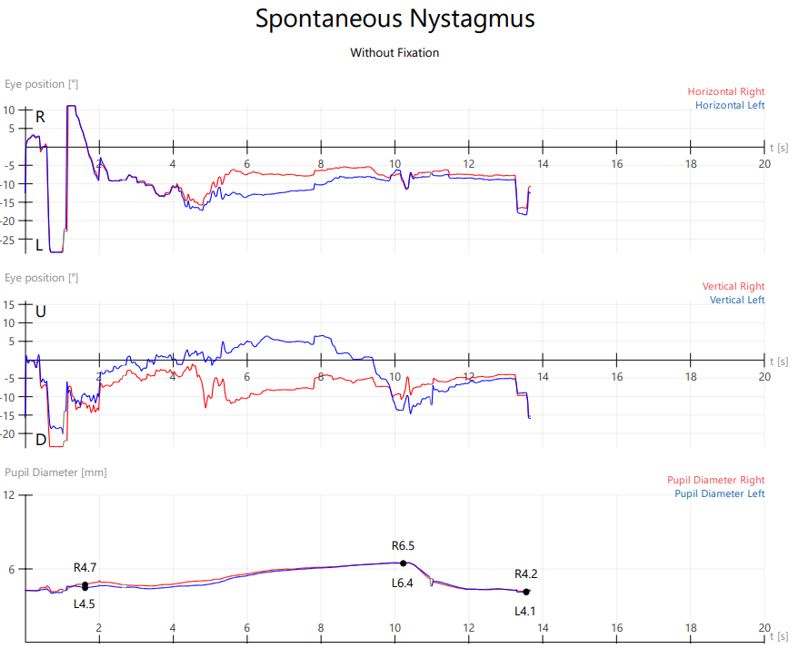
 

For all Pupil Diameter measurement points, displayed in seconds at the first decimal, the printout displays the pupil diameter in mm for the right and left eyes. For example, this printout shows a left pupil diameter of 4.5 mm and right pupil diameter of 4.7 mm at 1.6 seconds.
Figure 5: Pupil Diameter printout.


Exporting Pupil Diameter information

For Research Module users, Pupil Diameter information is exported for each test that it is measured. You can find this information under the 'Test Notes' file under each test.
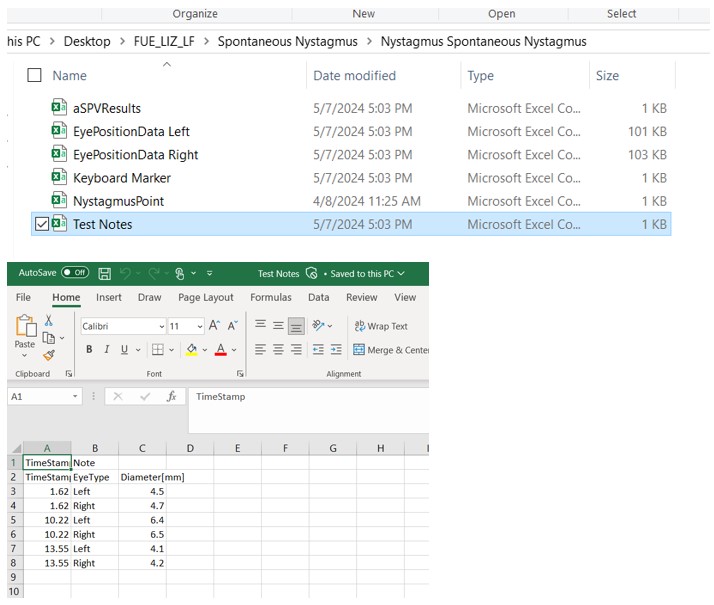
 

Figure 6: The pupil diameter for right and left eye exported data for Research Module License users.

Presenter
Dr Liz Fuemmeler

Dr Liz Fuemmeler

Dr. Liz Fuemmeler is the Balance Clinical Product Manager with Interacoustics and Vestibular Program Director at Professional Hearing Center in Kansas City, MO. She graduated with her Doctorate of Audiology in 2019 from Purdue University and received specialty training in vestibular and balance disorders at Boys Town National Research Hospital and the Mayo Clinic. She is actively involved in vestibular and concussion research and regularly lectures for local, national, and international conferences. Outside of her role with Interacoustics, she co-hosts a monthly podcast called "A Dose of Dizzy'' that reviews current vestibular protocols and research. She also is the past-president of the Missouri Academy of Audiology and volunteers with the American Academy of Audiology.

Available Training

How to perform the Active Head Rotation test

Learn how to perform the active head rotation (AHR) test in the VisualEyesTM software.

Dr Michelle Petrak2026-10-02

How to perform the Advanced Dix-Hallpike test

In this guide, you will learn how to perform the Advanced Dix-Hallpike using the VisualEyesTM videonystagmography (VNG) system.

Dr Michelle Petrak2026-10-02

How to perform the Brandt-Daroff Exercise

Click here to learn how to perform the Brandt-Daroff Exercise.

Interacoustics2026-10-02

How to perform calibration procedures

In this guide, you will learn how to calibrate the VisualEyesTM videonystagmography (VNG) system.

Dr Michelle Petrak2026-10-02

How to perform the Caloric test

Learn how to perform the caloric test with videonystagmography (VNG) equipment.

Interacoustics2026-10-02

How to perform Cervical Gaze testing

Two additional gaze positions are now available in VisualEyesTM 525 as an option to include in your test battery: Center Body Left and Right. Learn more.

Dr Liz Fuemmeler2026-10-02

How to perform the Dix-Hallpike test

Learn how to perform the Dix-Hallpike test, including precautions, patient instructions, the step-by-step test procedure, results interpretation, and more.

Interacoustics2026-10-02

How to perform the Dynamic Visual Acuity (DVA) test

Learn how to perform the dynamic visual acuity (DVA) test in the VisualEyesTM software.

Dr Michelle Petrak2026-10-02

How to perform the Epley Maneuver

Learn how to perform the Epley Maneuver for treatment of posterior canal BPPV. Includes a step-by-step procedure with images and helpful hints. Read more.

Interacoustics2026-10-02

How to use VisualEyesTM EyeSeeCam

In this guide, you will learn how to use the EyeSeeCam vHIT software within the VisualEyesTM videonystagmography (VNG) system.

Dr Michelle Petrak2026-10-02

How to perform the Functional Vision Head Impulse Test (fvHITTM)

The Functional Vision Head Impulse Test (fvHITTM) provides functional information on how clearly the patient sees in response to quick head impulses. Read more.

Dr Liz Fuemmeler2026-10-02

How to perform the Gaze test

Learn how to perform the gaze test with videonystagmography (VNG) equipment.

Interacoustics2026-10-02

How to perform the Gaze Stabilization Test (GST)

Learn how to perform the Gaze Stabilization Test (GST) in the VisualEyesTM software. Click here to read more.

Dr Michelle Petrak2026-10-02

How to perform the Gufoni Maneuver

Learn how to perform the Gufoni Maneuver in this short guide. Includes a step-by-step procedure with images and helpful hints. Read more.

Interacoustics2026-10-02

How to set up and troubleshoot monitors for oculomotor and optotype tests

In this quick guide, you will learn how to set up and troubleshoot monitors for oculomotor and optotype tests in the VisualEyesTM software. Read more.

Dr Liz Fuemmeler2026-10-02

How to use keyboard shortcuts in VisualEyesTM

VisualEyesTM has several software functions that are available through a computer keyboard. These allow for the user to access quick buttons for easy navigation.

Dr Liz Fuemmeler2026-10-02