
How to navigate the software modules
This quick guide provides information on how to view and navigate the software modules in Patient Manager 3.0. To view more detailed information, please reference the Patient Manager 3.0 User Manual.
How to view and access Virtualis modules
Below, we will cover the following:
- Viewing all Virtualis modules
- Accessing modules for your Virtualis solution
- Viewing available modules on your Virtualis solution
- Viewing module information
- Adding a module to a favorites list
Viewing all Virtualis modules
Use the catalogue to view all Virtualis software modules, along with their descriptions and the required configurations for each module.
Click on "Catalogue" on the left side of the home page.
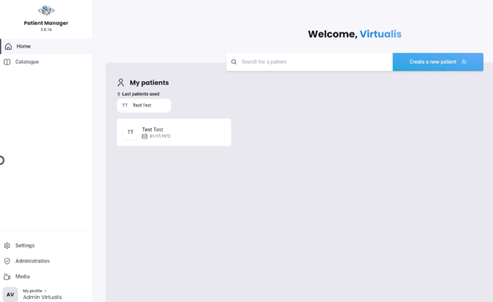
The catalogue will open. This shows all Virtualis modules, installed or not on your solution.
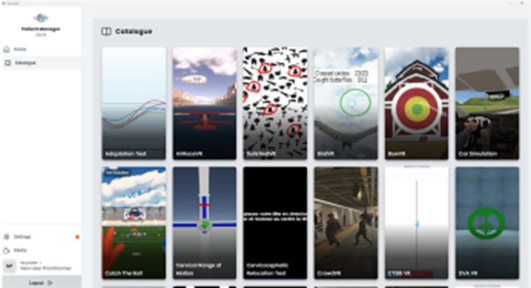
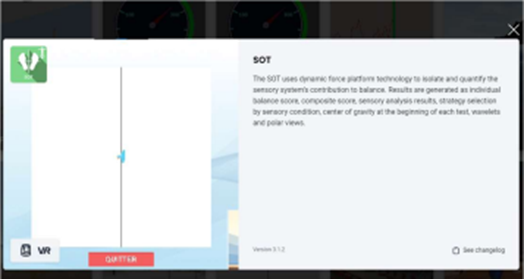
To view a module description, click on the intended software module. A description of the software module is listed on the right side of the screen.
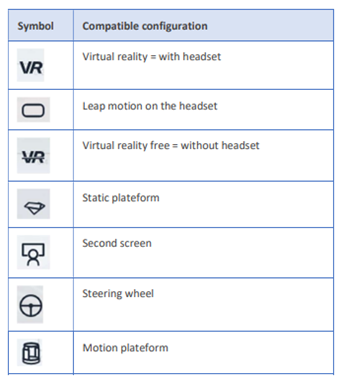
To see which Virtualis configuration is used to run the software module, look at the bottom left side of the screen.
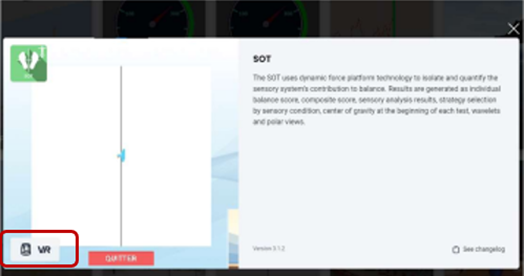
Below is a list of the configuration symbols and their descriptions:
Accessing modules for your Virtualis solution
To find and launch software modules for your Virtualis solution, you will need to access the module list under a patient profile.
Viewing available modules on your Virtualis solution
Click on a patient profile to access the module list.
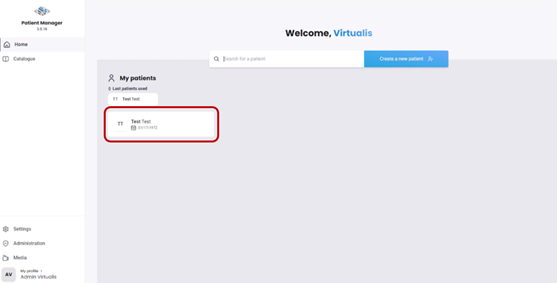
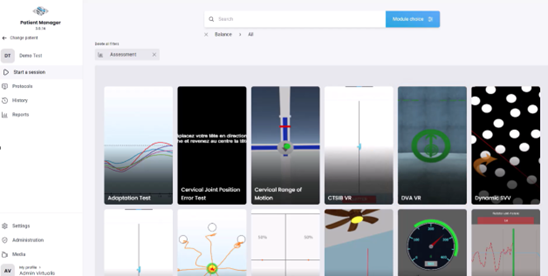
When you enter the patient profile, you will arrive on the "Start a session" tab. This is where you can see all the software modules available on your Virtualis solution.
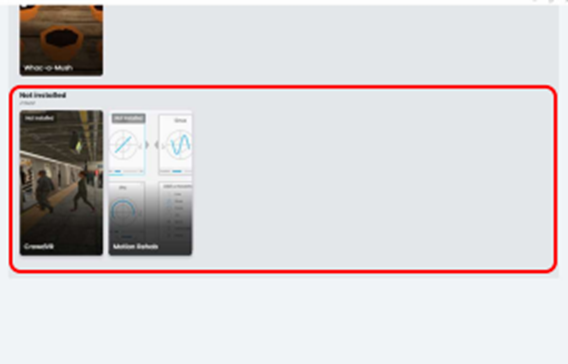
When you scroll to the bottom of the page, a "Not installed" section may appear. These are modules you do not have access to. Contact your local sales representative if you are interested in purchasing additional solutions.
Viewing module information
To view information for a module, hover your mouse over the module and select the "i" icon in the upper right corner.
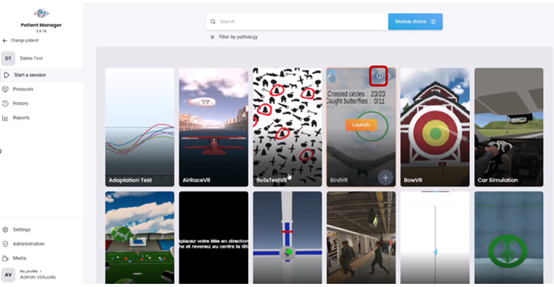
The information window appears and includes the following information:
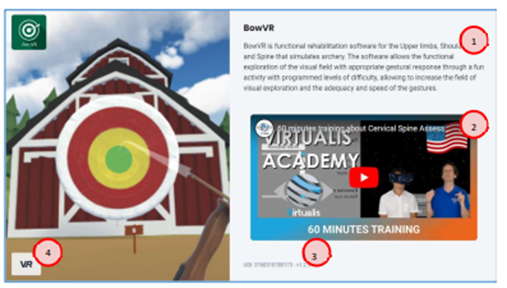
(1) A brief description of the module. (2) An explanatory video, if available. (3) The version number of the module. (4) The list of compatible configurations.
Click back to return to the module list.
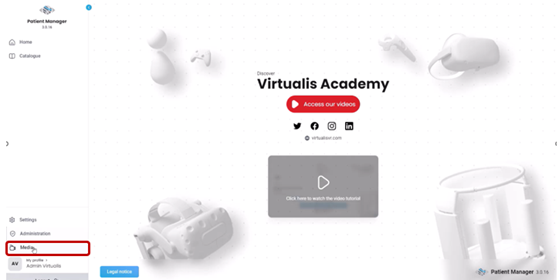
Note: You can access all available information module videos in Virtualis Academy located under the Media tab on the left side of the home page. You will need an internet connection to access these videos.
Adding a module to a favorites list
To add a software module as a favorite, hover your mouse over the intended module and select the star icon in the upper right corner.
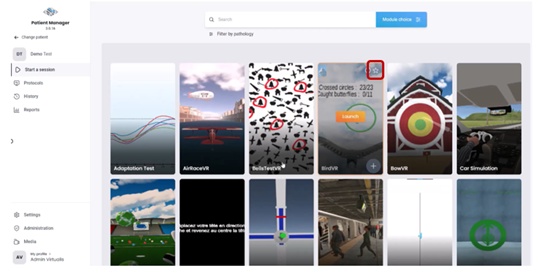
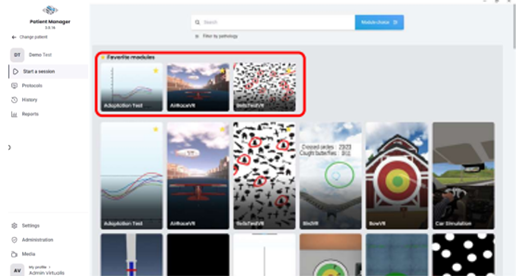
Marked modules will appear in the "Favorite modules" list at the top of the "Start a Session" tab in the patient profile.
How to search and filter Virtualis modules
Below, we will cover how to search and filter Virtualis modules:
Searching for a module
If you know the name of the software module you want to perform, this is the quickest way to launch a module.
Click in the search bar at the top of the screen in the patient profile.
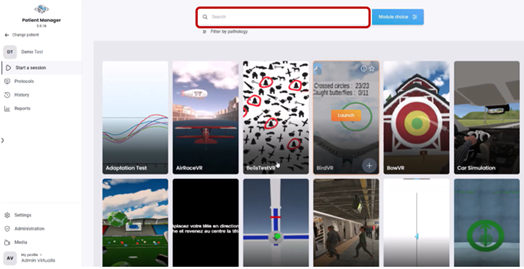
Start typing in the name of the module. The first three letters are often enough.
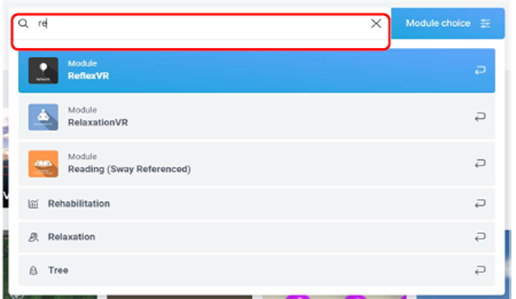
Select the intended module from the list to launch.
Filtering modules by session type
This option is recommended if you want to find modules based on assessment or rehabilitation.
Click on "Module choice" at the top of the patient profile screen.
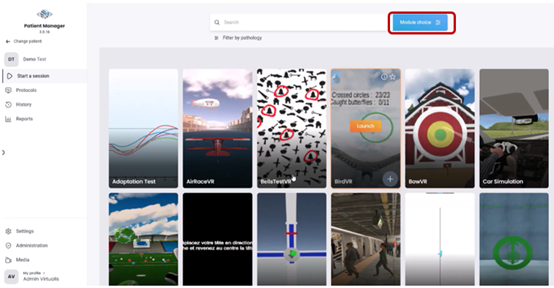
First, you have the option to filter modules by "Assessment" or "Rehabilitation".
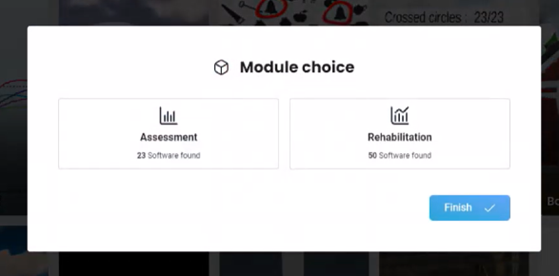
You may then apply additional filters for assessment or rehabilitation types. The window will close automatically when no more filter options are available. You can click on "Finish" at any time to validate your choice.
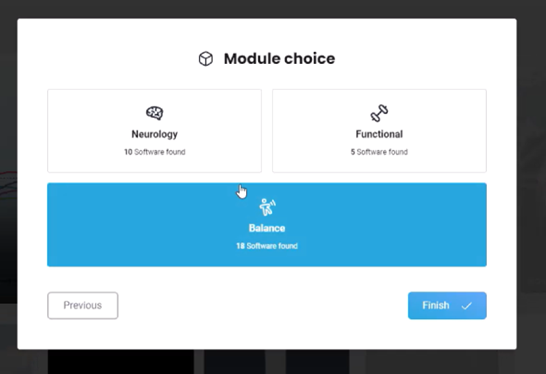
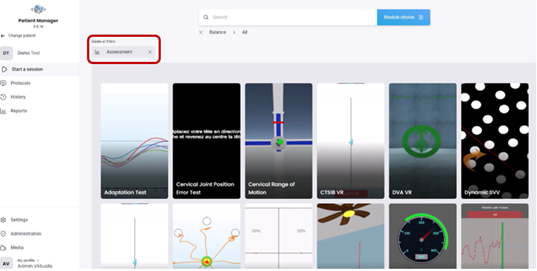
After selecting a session type, available modules will appear in the patient profile. You can then view or launch a module.
It is possible to remove filters by clicking on the "X" or selecting "Delete all filters".
Filtering modules by pathology
This option is recommended if you want to find modules based on patient pathology. Many modules can be used for multiple pathologies.
Click on "Filter by pathology".
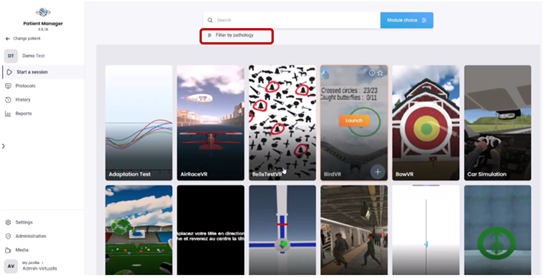
First, you have the option to filter by types of disorders including "Neurology", "Functional", "Balance", "Motion sickness", or "Fears and phobia".
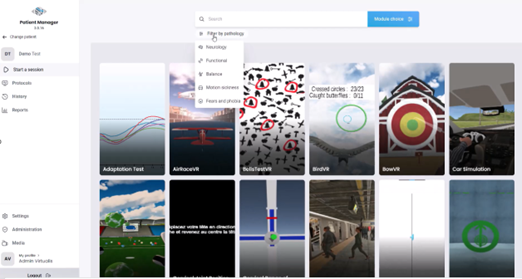
Once selected, modules will appear on the patient profile screen based on the filter you selected.
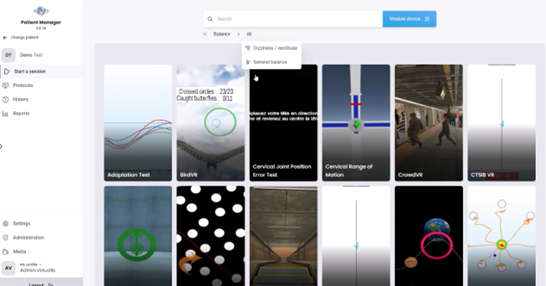
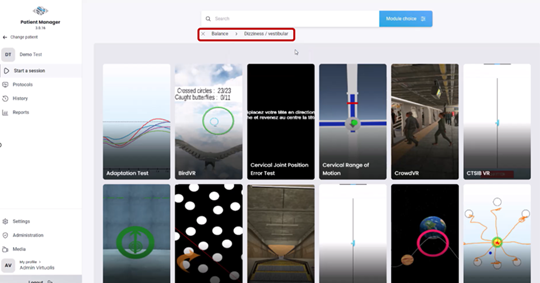
Once finished filtering, the search path of the pathology is displayed under the search bar.
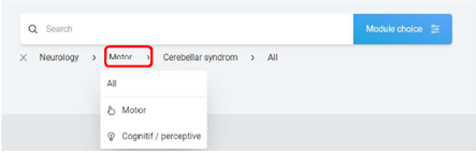
You can click on any part of the search path to modify your selection.
You can remove the pathology filter by clicking on the "X" button on the left side of the search path.

Presenter

Cassie Anderson PT, DPT
Global Clinical Educator for Balance Rehabilitation, Interacoustics A/S Cassie holds her Doctorate in Physical Therapy and has served as a licensed physical therapist for 11 years. She began her career in the inpatient rehab setting working primarily with patients post stroke then transitioned to the outpatient setting working primarily with the vestibular/balance population in a multidisciplinary ENT and neurology clinics. Cassie has participated in research and quality improvement projects aimed at incorporating technology into clinical practice and has presented at both the national and international level.
