
How to perform pure tone audiometry with Equinox Evo
Required equipment
- Equinox Evo
- Bone oscillator
- A patient response button
- Headphones or insert phones
Test procedure
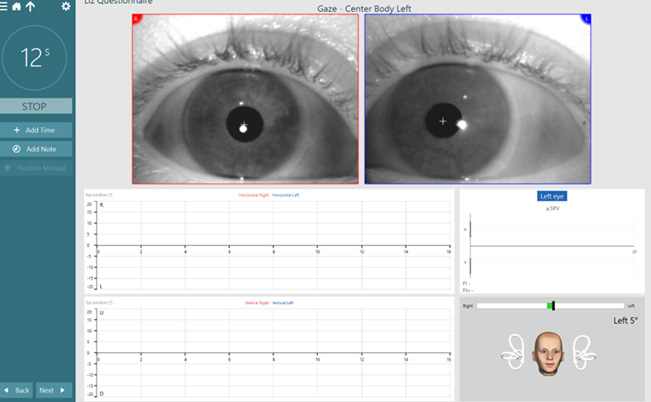
Launch the Equinox Suite as standalone, from Noah, or from OtoAccess®.
Click on the AUD tab on the upper right-hand corner of the screen.
Click on the music note icon to launch the pure tone audiometry screen if it is not the default screen.
Select the desired audiometry protocol from the protocols and sessions drop-down list.
Choose the transducer type and stimulus type if not already predefined from the Protocol Setup.
Frequency range
The frequency range can be operated from the Touch Keyboard, PC keyboard, or with the mouse.
- Touch Keyboard: Right/left arrow keys.
- PC keyboard: Right/left arrow keys.
- Mouse mode: Right/left arrow buttons.
Choosing the intensity
- Touch Keyboard: Use the left wheel for channel 1 and right wheel for channel 2.
- PC keyboard: Use the up/down arrow keys.
- Mouse mode: Up/down arrow buttons.
Presenting the stimuli
- Touch Keyboard: Use the tone switch.
- PC keyboard: Press on the space bar or right/left ctrl button.
- Mouse mode: Hover the mouse over the stimuli button.
If masking is necessary
Turn on masking in channel 2 after ensuring that the desired transducer is selected for the non-test ear.
Ensure that the word Masking is highlighted in orange.
Choose Rev to present the masking noise continuously.
It is also possible to turn on Auto masking or Masking help.
Presenter
