
Alternate Binaural Loudness Balance Test
What is the alternate binaural loudness balance (ABLB) test?
The alternate binaural loudness balance (ABLB) test measures the perceived loudness differences between the ears and is designed for people with unilateral hearing loss. It serves as a possible test for recruitment. The test is interpreted by assessing the loudness differences at high intensity levels. If the loudness perception is at the same intensity level for both ears complete recruitment has occurred in the hearing-impaired ear. Decruitment may occur in case of a retro cochlear disorder. In these cases, loudness in the impaired ear increases more slowly that for the normal hearing ear (Stack 1998).
The same tone is presented alternatively to both ears. The intensity is fixed in the impaired ear (20 dB above pure tone threshold). The task of the patient is to adjust the level of the better ear until the signal in the two ears is of equal intensity. Note however that the test may also be performed by fixing the intensity in the normal hearing ear and having the patient set the tone for the impaired ear.
Required equipment
- Headphones or insert phones
- A response button
ABLB test procedure
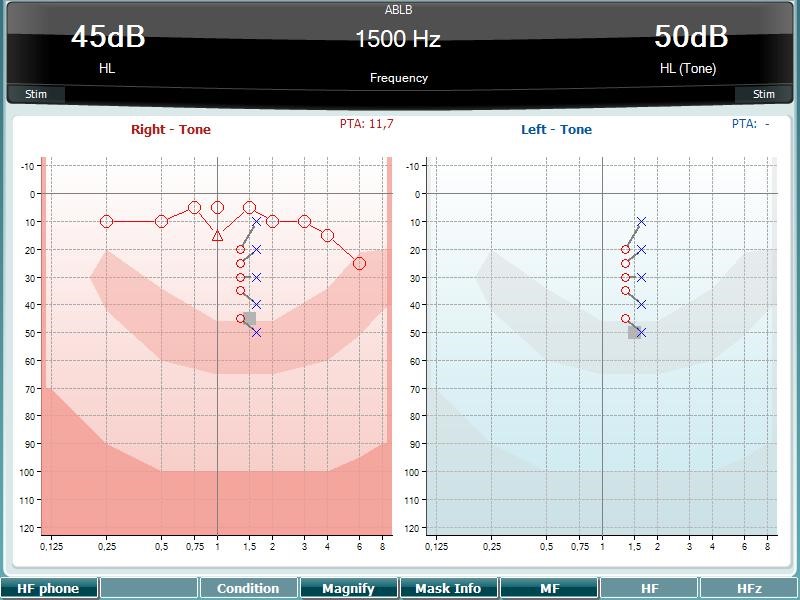
- Clarify the test procedure to the patient. Explain that he/she will now hear tones in both ears, which will be presented alternatively in each ear. The patient should then inform the audiologist when the two tones sound equal in intensity/loudness.
- Press and hold the Tests button and use the scroll wheel on the audiometer to select the ABLB - Fowler.
- The Man Rev button on the audiometer is set to Rev. This will ensure continuous presentation of the tones, without having to stimulate manually.
- The ABLB is performed at frequencies where recruitment is assumed. Set the intensity level on the impaired ear to 20 dB above the pure tone threshold using channel 2.
- Present tones for both channels by holding in the tone switch for channel 1. Adjust the intensity level in the better ear until the perceived loudness is identical to the impaired ear using channel 1.
- Once the loudness is judged equally loud, press Store, and continue to the next intensity level.
- Measure at multiple intensities to get a laddergram that can be interpreted.
- To measure at a different frequency, use the Down Up buttons on the audiometer to change the frequency for testing at different frequencies.
ABLB test results
The ABLB results are interpreted based on the laddergram, which displays the difference between the intensities for the right and left ear. The good ear is used as reference and displays the normal dynamic range where no recruitment is present. The poorer ear will display a narrowed dynamic range which indicates a degree of recruitment. In the example above, the left ear is the reference ear relative to the right ear showing a narrowed dynamic range, indicating recruitment in the right ear. If the range of the poorer ear is the same as for the good ear there is no recruitment.
References
Stach A.A., 1998. Clinical Audiology: An Introduction. Cengage Learning
Presenter
