
Quick Speech in Noise (QuickSIN)
Difficulty with hearing in background noise is a common complaint among hearing aid users. Therefore, the measurement of signal-to-noise ratio (SNR) loss is important because a person's ability to understand speech in noise cannot be reliably predicted from the pure tone audiogram.
What is the QuickSIN test?
The QuickSIN test provides a quick estimate of SNR loss. A list of six sentences with five key words per sentence is presented in four-talker babble noise. The sentences are presented at pre- recorded signal-to-noise ratios which decrease in 5-dB steps from 25 (very easy) to 0 (extremely difficult). The SNRs used are: 25, 20, 15, 10, 5 and 0, encompassing normal to severely impaired performance in noise.
Required equipment
- Headphones, insert phones, or free field speaker
- AC40 audiometer
How to perform the QuickSIN test
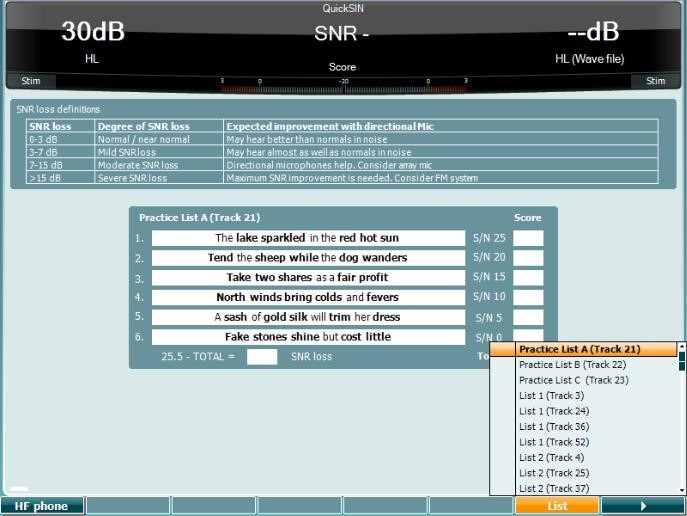
- Press and hold the Tests button and use the black scroll wheel to select QuickSIN. The audiometer will automatically default to "wavefile".
- Press and hold
 to select the desired wavefile, e.g. List 2. The first few lists in the list can be used for practice, so the user will familiarize with the test.
- Patient Instructions: "Imagine that you are at a party. There will be a woman talking and several other talkers in the background. The woman's voice is easy to hear at first, because her voice is louder than the others. Repeat each sentence the woman says. The background talkers will gradually become louder, making it difficult to understand the woman's voice, but please guess and repeat as much of each sentence as possible." Note: It may help to stress to the client to repeat what they have heard, even if they have only heard one word from the sentence as this may improve their score.
- Presentation level: You may choose your own preferred test level (Recommendation: 70dB HL level for a client with a pure tone average of 45dB or below. For pure tone average above 50dB HL, we recommend a level judged to be loud, but not discomforting for your client).
- Press
 to begin the test.
 - QuickSIN scoring: In each list there are 6 sentences, and in each sentence there will be 5 key words highlighted in bold. You must score the client on how many of these key words the client correctly repeats back to you. Please score using the scoring from 0 through 5 using the soft buttons. Once a sentence is scored, the next sentence will be presented automatically.
- QuickSIN score: Once all 6 sentences have been scored. The SNR Loss is the score used to quantify the client's difficulties and used to report the loss in dB. This score can be used to categorise the client's degree of SNR Loss.
- Save the QuickSIN test by clicking the Save Session
- Averaging several QuickSIN lists (only lists 1-12 at the same intensity level) will improve the reliability of the results. This will be particularly useful for comparing two conditions i.e. Aided vs. Unaided or before and after hearing aid adjustments have been made.
Aided QuickSIN
It is possible to do an aided QuickSIN when using the audiometer via Diagnostic Suite, given the audiometer is free field calibrated. Making an Aided QuickSIN and an unaided QuickSIN is a useful tool to evaluate the benefit of a hearing aid treatment in a noisy environment.
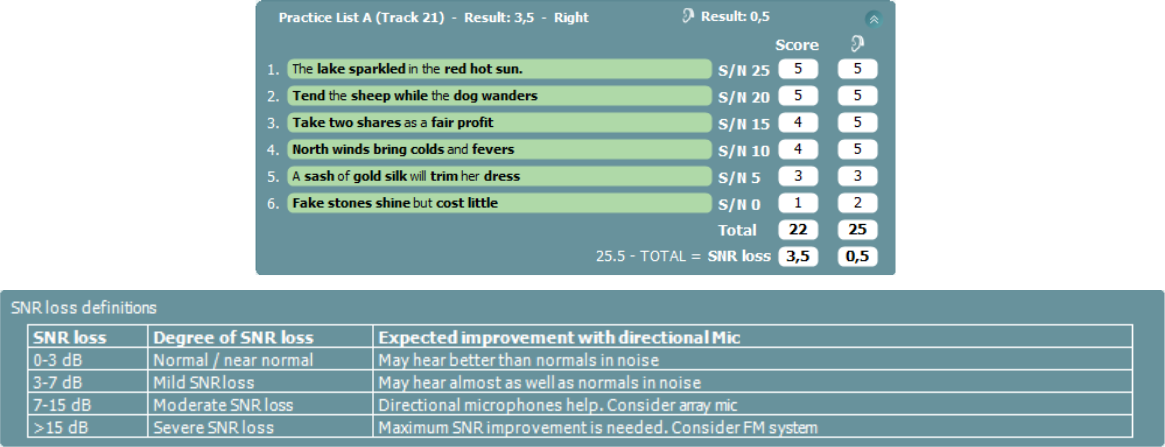
 Select Free Field as the transducer, this will activate the aided function. Click on the aided button, this will add an extra column to the QuickSIN scoring table allowing you to compare unaided and aided results.
QuickSIN results
The SNR loss = 25.5 - Total, where the Total score is a sum of the score for each sentence (see example below). The SNR loss is then categorized based on the definition seen in the table in the test screen. Example: The total score is 22, which gives a SNR loss of 3.5. According to the definition the patient is having a Mild SNR loss.
Learn more
To learn more about QuickSIN testing, please read the QuickSIN manual.
Presenter
