
Ambient Noise

By Interacoustics

The purpose of this document is to provide a quick guide for the Ambient Noise feature found in the AC440 Audiometry module in the Affinity Suite. This quick guide will focus on how to use this function.

What is the Ambient Noise feature?


The Ambient Noise feature allows you to monitor the test environment for noise during Audiometry testing. It is ideal for when you may be testing in non-optimal conditions or when testing via teleaudiometry and you are not present in the test environment.

Knowledge of your testing conditions will allow you to assess the validity of your measurments ahead of making a diagnosis.


Preparation

  1. Ensure that you have the Ambient Noise microphone plugged into your Affinity Compact. The socket for this has been highlighted in the image below.
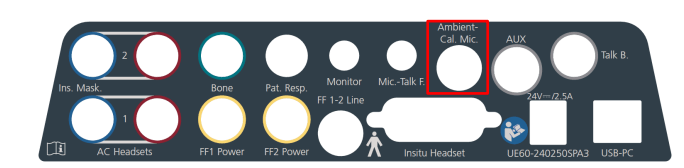
    Affinity Compact sockets, with a red square around the socket for the ambient noise microphone.
  2. Launch your Affinity Suite and go into the AC440 Module.
  3. The Ambient Noise monitor can be seen in the left panel of the AUD screen when enabled in your test protocol.
    The below image shows the location of the Ambient Noise setting in your Audiometry protocol
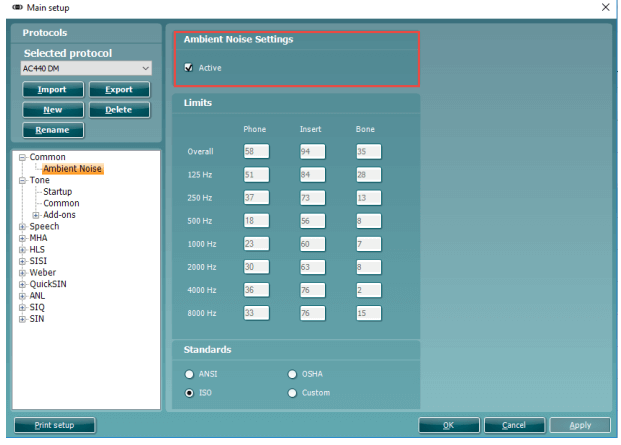
    Ambient noise settings, including noise limits for phone, insert, and bone at various frequencies. Four standards to choose between: ANSI, OSHA, ISO, and custom.
    The Ambient Noise feature constantly shows the average noise level in the top bar and then individual frequency levels below. It will show darker bars (limits) and orange bars above this when the limit is exceeded, see example below
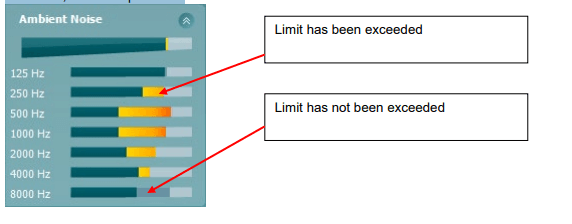
    Average noise level in the top bar, with seven separate noise level bars for 125, 250, 500, 1000, 2000, 4000, and 8000 Hz below. On average, the noise level has been exceeded slightly. For 125 and 8000 Hz, the noise level has not been exceeded. The noise level has been exceeded for the other frequencies.
  4. The Ambient Noise feature is operating according to specific guidance found in calibration standard documents. The applied settings can be found in the configuration of this feature in your protocol settings.
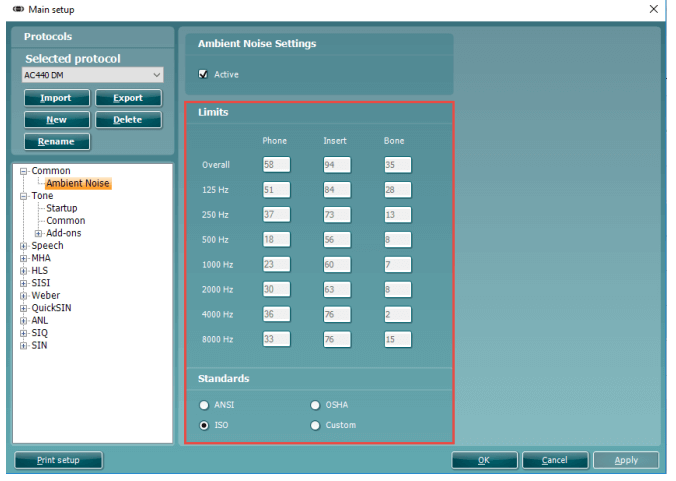
    In the Ambient Noise configuration you have the options to activate the Ambient Noise feature.

    You will also notice that there are boxes to input the limit levels for different transducers and their associated frequencies, you can only manually input these values when selecting a Custom standard.
    These will be greyed out when a standard is chosen (e.g. ANSI, OSHA or ISO).

    Note: Despite this feature only being present in the AC440 module, you can still use this to assess your test environment ahead of performing REM or HIT measurements.

Presenter

Interacoustics

Available Training

Acceptable Noise Level (ANL) Test

Learn how to perform the acceptable noise level (ANL) test with the Affinity Compact.

Interacoustics2026-10-02

AC440 Protocol Setup

Learn how to set up protocols in the Affinity Compact's audiometry module.

Interacoustics2026-10-02

Adult Hearing Aid Verification

Learn how to verifiy hearing aids in adults with the Affinity Compact, using real ear measurements (REM).

Interacoustics2026-10-02

Affinity Compact: A product introduction

This video provides an introduction to and overview of the Affinity Compact.

Interacoustics2026-10-02

Affinity Compact: Features and functions

This video provides an overview of the Affinity Compact's features and functions.

Dennis Mistry2026-10-02

IA-AMTAS

Learn about the IA-AMTAS feature in Affinity Compact for automated audiometry testing.

Interacoustics2026-10-02

Basic Audiometry

Learn how to do basic audiometry with the Affinity Compact.

Interacoustics2026-10-02

BKB-SIN speech-in-noise test

In this quick guide, you will learn how to use the BKB-SIN speech-in-noise test provided with the Interacoustics Affinity Compact audiometer. Read more.

Interacoustics2026-10-02

How to perform CROS and BiCROS fitting

Learn how to fit CROS and BiCROS hearing aids with the Affinity Compact.

Interacoustics2026-10-02

Customized Printout Setup

Learn how to customize printouts with the Affinity Compact.

Interacoustics2026-10-02

Delta Values

To make hearing aid fitting easier, the Delta Values feature calculates the difference between your measurement curve and your target curve. Learn more here.

Interacoustics2026-10-02

How to perform FM transparency verification

In this Affinity Compact quick guide, you'll learn how to perform FM transparency verification. Read more.

Interacoustics2026-10-02

Free Field Adjustment

Learn about Affinity Compact's free field adjustment feature, which ensures your free field speaker is properly calibrated, no matter the sound environment.

Interacoustics2026-10-02

How to perform frequency lowering verification

In this Affinity Compact quick guide, you'll learn how to determine if you should apply frequency lowering and how to verify the frequency lowering feature.

Interacoustics2026-10-02

Hearing Aid Transition (HAT)

Learn about the hearing aid transition test, which allows you to copy tuning preferences from hearing aids which you do not have previous sessions stored for.

Interacoustics2026-10-02

HIT440 Protocol Setup

Learn how to set up protocols in the Affinity Compact's hearing instrument testing module.

Interacoustics2026-10-02