Basic Audiometry

By Interacoustics

The purpose of this document is to provide a quick guide for basic functions of the AC440 audiometry module for the Affinity Suite. This quick guide will focus on pure tone audiometry as well as a basic introduction to the various icons, tools and menus available. 

Starting up the AC440 Module


  1. Launch the Affinity Suite from Noah or OtoAccess®.
  2. Click on the AUD tab on the upper right hand side of the screen.
  3. Click on the icon to launch the tone audiometry screen, if Tone audiometry is not the default screen.
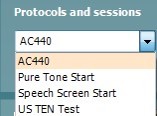
  4. Select the desired Audiometry protocol from the "Protocols and Sessions" drop down list.
 

Conducting pure tone audiometry

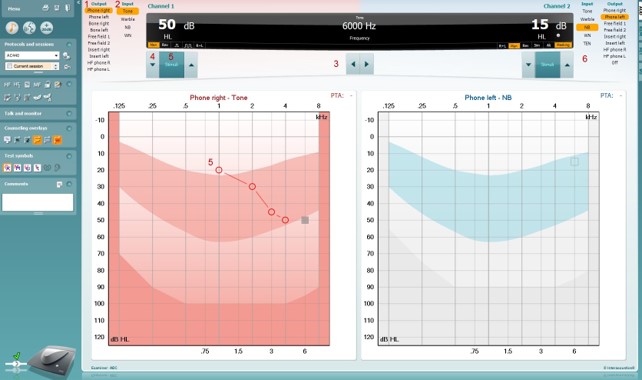
  1. Choose the transducer type.
  2. Choose the Stimulus type.
  3. Choose the test frequency :

    • PC Keyboard: right/left arrow keys.
    • Mouse mode: Left/Right arrow buttons.
  1. Choose the intensity:

    1. With PC keyboard: use the up/down arrow keys.
    2. Mouse mode: Up/Down arrow buttons.
  1. Presenting the stimuli:

    1. PC Keyboard: press on the space bar or left Ctrl button.
    2. Mouse mode: hover the mouse over the Stimuli button.
  1. If masking is necessary:

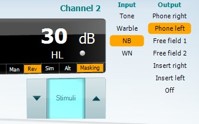
    • Turn on masking in Channel 2 by ensuring that the desired transducer is selected for non-test ear.
    • Ensure that the word "Masking" is highlighted in orange.
    • Choose "Rev" to present the masking noise continuously.
    • It is also possible to turn on Automasking or Masking help.


Navigation: Tools and functions
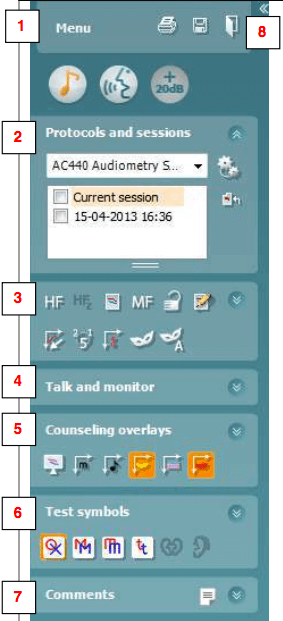
  1. Menu: Click on Menu to access other Audiometry Special tests by going to Menu│Tests.
  2. Protocols and Sessions: Choose the desired test and choose the session to display. Current Session is always the active session. Highlight and select older sessions to be displayed on the active audiogram for comparison.
  3. Buttons: Access various tools and features for Tone Audiometry, including High Frequency Audiometry, Multifrequency Audiometry, Automasking, Masking Help and many others.
  4. Talk and Monitor: activate/deactivate the Talk Forward and Monitor during testing.
  5. Counseling Overlays: Activate/deactivate useful tools when counseling patients about hearing loss.
  6. Test symbols: Choose from the available symbols to display on the audiogram, now also including the tinnitus symbol.
  7. Comments/Report Editor: Use this feature to add comments relevant to the session.
  8. Click on to collapse/minimize the Tools and Function task bar.
  9. Right Click on the menus (except on protocol and sessions) to show/hide the various tools and function.

Presenter

Interacoustics

Available Training

Acceptable Noise Level (ANL) Test

Learn how to perform the acceptable noise level (ANL) test with the Affinity Compact.

Interacoustics2026-10-02

AC440 Protocol Setup

Learn how to set up protocols in the Affinity Compact's audiometry module.

Interacoustics2026-10-02

Adult Hearing Aid Verification

Learn how to verifiy hearing aids in adults with the Affinity Compact, using real ear measurements (REM).

Interacoustics2026-10-02

Affinity Compact: A product introduction

This video provides an introduction to and overview of the Affinity Compact.

Interacoustics2026-10-02

Affinity Compact: Features and functions

This video provides an overview of the Affinity Compact's features and functions.

Dennis Mistry2026-10-02

Ambient Noise

Worried about noise in your audiometry recordings? Affinity Compact has an Ambient Noise feature, which allows you to monitor for noise in the test environment.

Interacoustics2026-10-02

IA-AMTAS

Learn about the IA-AMTAS feature in Affinity Compact for automated audiometry testing.

Interacoustics2026-10-02

BKB-SIN speech-in-noise test

In this quick guide, you will learn how to use the BKB-SIN speech-in-noise test provided with the Interacoustics Affinity Compact audiometer. Read more.

Interacoustics2026-10-02

How to perform CROS and BiCROS fitting

Learn how to fit CROS and BiCROS hearing aids with the Affinity Compact.

Interacoustics2026-10-02

Customized Printout Setup

Learn how to customize printouts with the Affinity Compact.

Interacoustics2026-10-02

Delta Values

To make hearing aid fitting easier, the Delta Values feature calculates the difference between your measurement curve and your target curve. Learn more here.

Interacoustics2026-10-02

How to perform FM transparency verification

In this Affinity Compact quick guide, you'll learn how to perform FM transparency verification. Read more.

Interacoustics2026-10-02

Free Field Adjustment

Learn about Affinity Compact's free field adjustment feature, which ensures your free field speaker is properly calibrated, no matter the sound environment.

Interacoustics2026-10-02

How to perform frequency lowering verification

In this Affinity Compact quick guide, you'll learn how to determine if you should apply frequency lowering and how to verify the frequency lowering feature.

Interacoustics2026-10-02

Hearing Aid Transition (HAT)

Learn about the hearing aid transition test, which allows you to copy tuning preferences from hearing aids which you do not have previous sessions stored for.

Interacoustics2026-10-02

HIT440 Protocol Setup

Learn how to set up protocols in the Affinity Compact's hearing instrument testing module.

Interacoustics2026-10-02