
HIT440 Test Protocol

By Interacoustics

Learn how to work with, create or edit protocols in the Affinity 2.0 and Callisto™ software suites.

The Affinity 2.0 and Callisto™ software suites all have pre-defined protocols. Most of these protocols can easily be copied, modified or created from new. These modifications can be either permanent or temporary.


Working with Protocols
Selecting a standard test protocol:

  1. Open the Affinity 2.0 Suite from Noah, OtoAccess™, or stand-alone.
  2. Click on the HIT tab.
  3. In the List of Protocols, all customized and standard test protocols are listed.
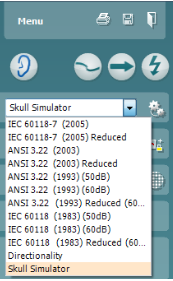
Designing a New Customized Test Protocol

  1. Enter the HIT440 setup by pressing Menu/Setup/HIT440 setup.
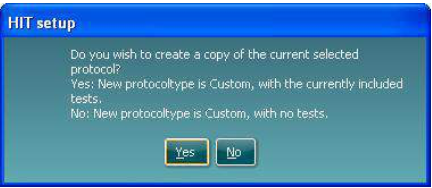
  2. Press New. A pop-up will ask whether the new test protocol should be based on a copy of the currently selected test protocol. When asked by the message box:
    YES: The system will create a copy of the current test and allow you to add new tests, make changes, and save it under a new name.
    NO: The Selected tests section will be blank and you can create a new test from scratch.
  3. Name the test protocol setup in the Selected protocol section.
  4. Select the tests to be included in the test protocol. Mark a test by clicking on it and press the Add. Double clicking on a test will also select it. Choose all the tests for the test protocol using this procedure.
  5. To remove a test selected by mistake, select it under Selected tests and press Remove. The test will then jump back to the Test selection list.
  6. If the order of the tests is to be changed, use the two Move arrow buttons.
    Mark the test to be moved and press one of the arrow buttons. Depending on the direction of the selected arrow, the test will then jump up or down.
  7. To make adjustments to the parameters of each selected test press Settings.
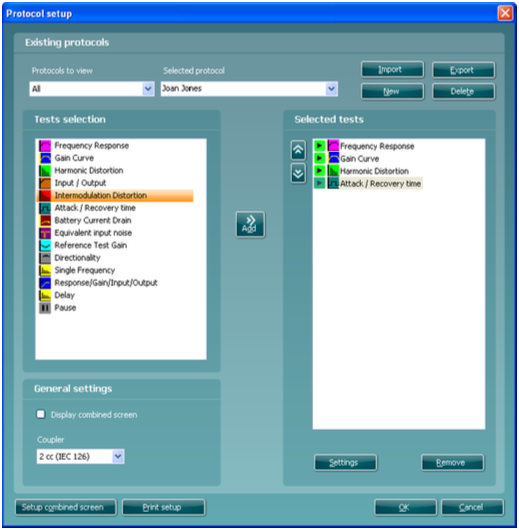
  8. In General settings find the following additional options:

    Display combined screen allows for comparing different curves by default in the same graph. The option is also available from the front screen. Which curves to compare can be setup individually.
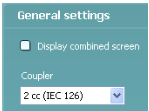
    Coupler allows you to select the preferred coupler to be used in the test protocol. Select from 0.6 cc, 1.2 cc, 2 cc, and Ear simulator (IEC 711).

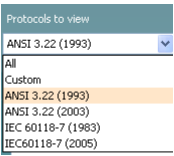
    Note: Prior to creating a new test protocol you may wish to select a protocol type in the Protocols to view dropdown list. This function is practical if you for example wish to create a new protocol based on elements from the ANSI or IEC standard. In this case the dropdown list can be used to select an ANSI or IEC standard before clicking New. When asked if the new protocol should be based on a copy of the currently selected protocol, click yes.
Presenter

Interacoustics

Available Training

Acceptable Noise Level (ANL) Test

Learn how to perform the acceptable noise level (ANL) test with the Affinity 2.0 device.

Interacoustics2026-10-02

AC440 Protocol Setup

There are many different demands and wishes regarding how an audiometer should both function and appear depending on the specific situation and national standards. One of the greatest advantages of the AC440 module is the flexibility, enabling you to tailor the system according to your specific preferences in the so-called “test protocols”. This article describes basic functionality on how to work with the AC440 Protocols.

Interacoustics2026-10-02

Adult Hearing Aid Verification

Learn how to verifiy hearing aids in adults with the Affinity 2.0 device, using real ear measurements (REM).

Interacoustics2026-10-02

Basic Audiometry

Learn how to do basic audiometry with the Affinity 2.0 device.

Interacoustics2026-10-02

Binaural Real Ear Measurements

Learn how to perform binaural real ear measurements (REM) with the Affinity 2.0.

Interacoustics2026-10-02

BKB-SIN speech-in-noise test

In this quick guide, you will learn how to use the BKB-SIN speech-in-noise test provided with the Interacoustics Affinity 2.0 audiometer. Read more.

Interacoustics2026-10-02

How to perform CROS and BiCROS fitting

Learn how to fit CROS and BiCROS hearing aids with the Affinity 2.0 device.

Interacoustics2026-10-02

How to customize icons

Learn how to customize icons with the Affinity.

Dennis Mistry2026-10-02

How to perform FM transparency verification

In this Affinity 2.0 quick guide, you'll learn how to perform FM transparency verification. Read more.

Interacoustics2026-10-02

How to perform frequency lowering verification

In this Affinity 2.0 quick guide, you'll learn how to determine if you should apply frequency lowering and how to verify the frequency lowering feature.

Interacoustics2026-10-02

Delta Values

Learn how to get a more accurate target match when fitting hearing aids with the Affinity.

Dennis Mistry2026-10-02

Hearing Instrument Testing

Learn how to perform hearing instrument testing with the Affinity 2.0 device.

Interacoustics2026-10-02

How to Create a New Protocol in REM440

Learn how to create protocols in the Affinity's real-ear measurement module.

Leigh Martin2026-10-02

How to do an RECD Using the SPL60 Probe

Learn how to do an RECD using the SPL60 probe.

Leigh Martin2026-10-02

How to do Pure Tone Audiometry

Learn how to do pure tone audiometry with the Affinity.

Dennis Mistry2026-10-02

How to do Real Ear Measurement in Open Fit Hearing Aids

Learn how to do real-ear measurements in open-fit hearing aids.

Leigh Martin2026-10-02