
Speech in Noise (SIN) Test
What is the speech in noise (SIN) test?
The SIN test is a method of testing a patient's functional hearing in the presence of competing sound (Taylor, 2003). The objective of this is to identify their functional hearing ability and higher processing which allows them to sort between useful (speech/signal) and irrelevant (noise/masking) information (Taylor, 2003). The outcome of this investigation will give a Speech Recognition Threshold (SRT) for a varying Signal to Noise Ratio (SNR).
This type of testing is different from Tone Audiometry as it involves higher areas of the Auditory pathway as the information needs to be heard, sorted and understood in order to determine if it is useful or not (Marrone et al., 2008).
The SIN test is designed to be performed via loudspeaker as it is a free field test. However it can be configured to perform monaurally via selection of headphones and routing the masking to the same output.
The SIN test is very similar to Speech Audiometry and can use any of the materials you have already ripped into your Interacoustics Suite software. However the Signal-to-Noise Ratio is maintained automatically by the software following a correct or incorrect response to the stimulus, this helps to speed up the test time.
When to perform the SIN test?
It is normal to perform this following Tone Audiometry as it gives a good indicator of the patient s performance for speech in noise. It can also be used before and after the provision of hearing aids to give an identification of the benefit achieved through amplification (Marrone, Mason and Kidd, 2008).
SIN test procedure
- Launch the Affinity Suite from Noah or OtoAccess®.
- Click on the AUD tab on the upper right hand side of the screen. Ensure that your Audiometry has been performed ahead of advancing into the SIN test as this determines the start level for the test.
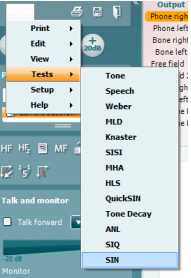
- Click on Menu, Tests and then select SIN
Once in the SIN test screen, the stimuli levels should be set for you. These are based on the patient audiogram and the PTA score.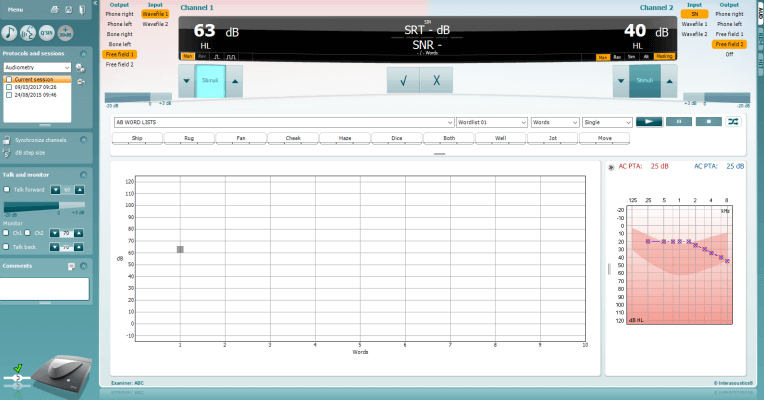
- Ensure that your speech material is correct and the relevant list has been chosen.
- Turn on the masking in Channel 2 by clicking from Man to Rev. The masking will need to be turned on manually, this is because you may want to perform an initial familiarization test with the patient without the noise to begin.
- Instruct the patient to respond by repeating the words that they hear. Press the play icon to begin the test.
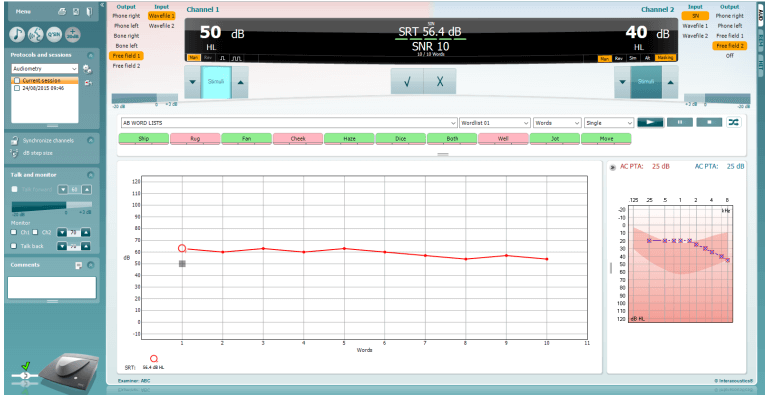
- On the patients' response, score the words correct or incorrect according to their response. The system will automatically increase the next stimulus intensity for an incorrect response and decrease the next stimulus intensity for a correct response.
- Repeat this procedure until your word list has completed. The system will automatically store on completion of your word list.
References
Taylor, B. (2003). Speech in noise tests: How and why to include them in your test battery. [online] Available at: https://www.etymotic.com/media/publications/erl-0077-2003.pdf [Accessed 7 Mar. 2017].
Marrone, N., Mason, C. and Kidd, G. (2008). Evaluating the Benefit of Hearing Aids in Solving the Cocktail Party Problem. Trends in Amplification. 12(4): 300-315.
Presenter
