
How to perform the acceptable noise level (ANL) test with Equinox Evo

By Interacoustics

Test procedure

Launch the Equinox Suite from Noah, OtoAccess® or standalone.

Click on the AUD tab on the upper right-hand side of the screen. Perform audiometry before the ANL test as this determines the start level for the test.

Click on Menu, Tests and then select ANL.
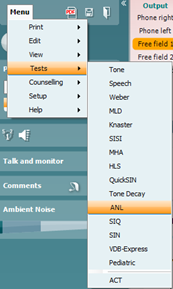
 

Figure 1: Selecting the ANL test.


Test conditions

Once in the ANL test screen, you will see that there are four different conditions which you can choose to measure (Table 1).


Condition Measurement
MCL High Loudest comfortable level without competing noise
MCL Low Lowest comfortable level without competing noise
MCL Real Most comfortable level without competing noise
BNL MCL Real with competing noise manipulated to find an ANL value

Table 1: The four conditions of the ANL test.


It is not essential to perform MCL High and MCL Low for the ANL test, but these are also good indicators of the patient's comfortable hearing range.


MCL High

Click on the MCL High icon and click play. This will loop your speech material.
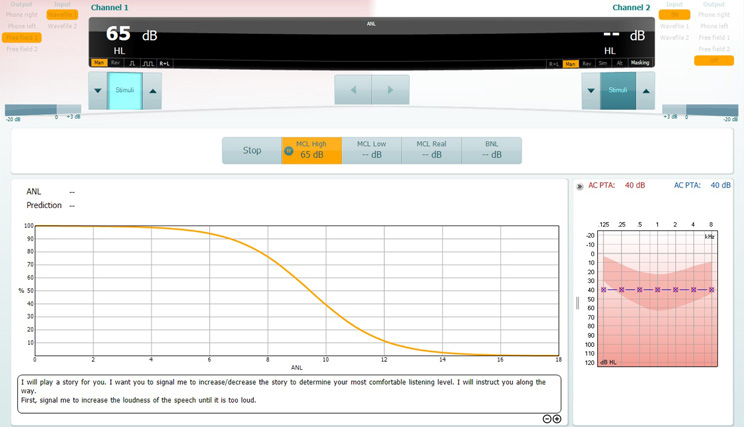
 

For this test, the patient is instructed to increase the loudness of the speech until it is too loud.
Figure 2: MCL High test screen.


Increase and decrease the stimulus intensity to match the patient's loudest MCL.

There will be no other change in the display to represent this, only the level in the MCL High icon box.


MCL Low

Click on the MCL Low icon and click play. This will loop your speech material.
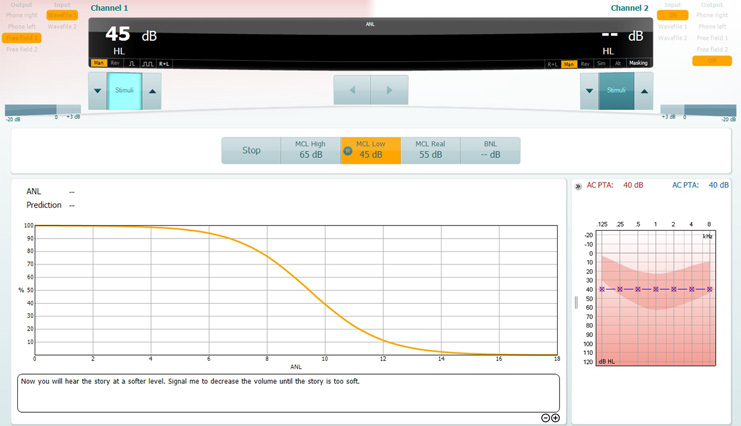
 

For this test, the patient is instructed to decrease the loudness of speech until it is too low. In this example, the MCL High is 65 dB and the MCL Low is 45 dB. Thus, as a midpoint between the MCL High and MCL Low, the predicted MCL Real is 55 dB.
Figure 3: MCL Low test screen.


Increase and decrease the stimulus intensity to match the patient's lowest MCL.

The display will change within the icon, but a predicted MCL Real will also be generated as a midpoint between the MCL High and MCL Low.


MCL Real

Click on the MCL Real icon and click play. This will loop your speech material.

If you have performed the MCL High and MCL Low, you should already have a predicted MCL value here. If not, then increase/decrease the intensity to find a suitable level for the patient's MCL.
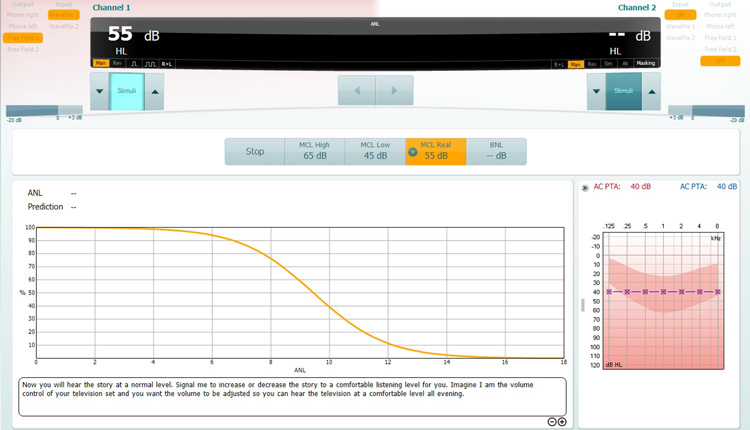
 

For this test, the patient is instructed to increase or decrease the loudness of speech until it is at a comfortable listening level.
Figure 4: MCL Real test screen.


Again, the display will not change, other than inside the icon for your test condition.


BNL

Click on the BNL icon and click play. This will loop the same speech material but also introduce the background masking noise.
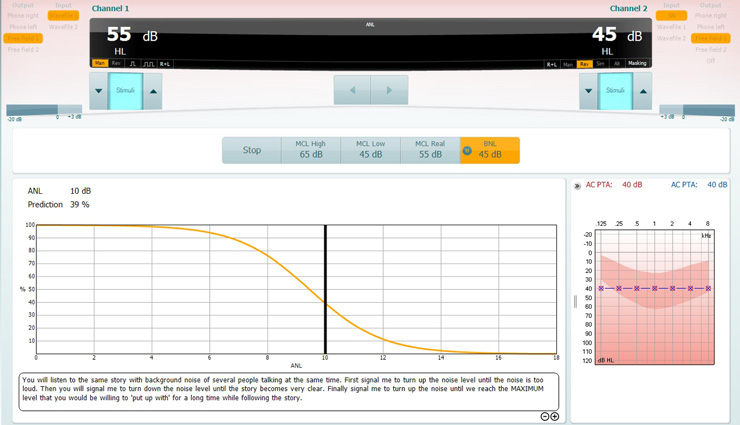
 

For this test, the patient is instructed to turn up the background noise level until it is too loud. Then turn down the background noise level until the speech material is very clear. Finally, turn up the background noise level until the patient reaches the maximum level that they would be willing to put up with for a long time while following the speech material. In this example, the patient's ANL value is 10 dB and the patient's performance prediction with amplification is 39%.
Figure 5: BNL test screen.


Increase/decrease Channel 2 to find a level of competing noise which the patient would be comfortable to listen to alongside their target material. While doing this, you will notice the display will change to reflect the patient's ANL value and the prediction percentage of how well they will perform with amplification.

Note: You can customize the instructions displayed in the test screen by entering the ANL setup (Figure 6).
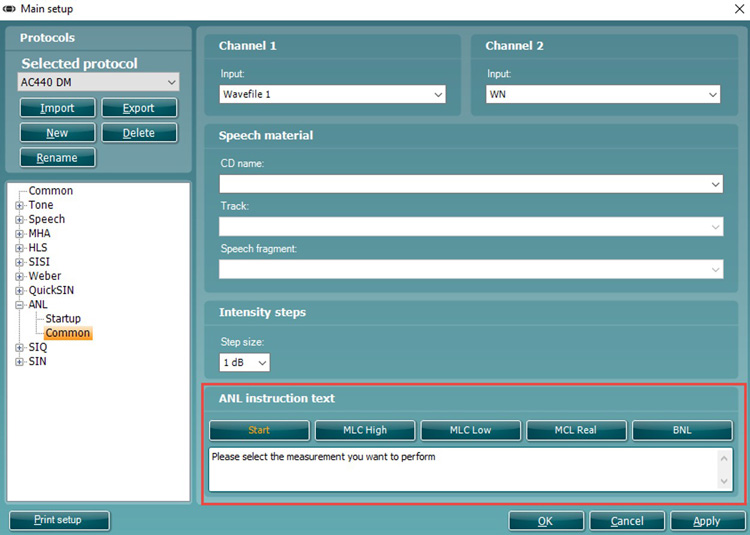
 

Figure 6: Free input field in ANL | Common where you can alter the instruction texts for each ANL subtest.

Presenter

Interacoustics

Available Training

How to perform the Alternate Binaural Loudness Balance (ABLB) test with Equinox Evo

Click here to learn how to perform the alternate binaural loudness balance (ABLB) test with the Equinox Evo clinical audiometer.

Interacoustics2026-10-02

How to use Ambient Noise with Equinox Evo

Click hear to learn how to use the Ambient Noise feature with the Equinox Evo clinical audiometer.

Interacoustics2026-10-02

How to perform audiometric masking with Equinox Evo

Learn how to perform audiometric masking with the Equinox Evo clinical audiometer.

Interacoustics2026-10-02

How to perform basic audiometry with Equinox Evo

Click here to learn how to perform basic audiometry with the Equinox Evo clinical audiometer.

Interacoustics2026-10-02

Equinox Suite: How to set up your VRA

Learn how to set up your visual reinforcement audiometry (VRA) using the Equinox Suite software with the Equinox Evo clinical audiometer.

Interacoustics2026-10-02

Equinox Evo: How to set up the assistant monitor

Learn how to set up the assistant monitor functionality using the Equinox Suite software with the Equinox Evo clinical audiometer.

Interacoustics2026-10-02

Equinox Suite: How to use the VRA feature

Learn how to use the visual reinforcement audiometry (VRA) feature in the Equinox Suite software with the Equinox Evo clinical audiometer.

Interacoustics2026-10-02

How to perform Free Field (FF) Adjustment with Equinox Evo

Click here to learn how to perform free field adjustment with the Equinox Evo clinical audiometer.

Interacoustics2026-10-02

How to perform High Frequency Audiometry with Equinox Evo

Click here to learn how to perform high frequency audiometry with the Equinox Evo clinical audiometer.

Interacoustics2026-10-02

How to print with Equinox Evo

Click here to learn how to print with the Equinox Evo clinical audiometer.

Interacoustics2026-10-02

How to perform IA-AMTAS with Equinox Evo

Click here to learn how to perform the IA-AMTAS automated audiometry test with the Equinox Evo clinical audiometer.

Interacoustics2026-10-02

How to perform Masking Level Difference (MLD) with Equinox Evo

Learn how to perform the masking level difference (MLD) test with the Equinox Evo clinical audiometer.

Interacoustics2026-10-02

PC keyboard shortcuts with Equinox Evo

Click here to access the PC keyboard shortcuts for the Equinox Evo clinical audiometer.

Interacoustics2026-10-02

How to use pediatric noise with Equinox Evo

Learn how to use the pediatric noise stimulus with the Equinox Evo clinical audiometer.

Interacoustics2026-10-02

How to set up protocols in the Equinox Evo software

Click here to learn how to set up protocols in the software for the Equinox Evo clinical audiometer.

Interacoustics2026-10-02

How to perform pure tone audiometry with Equinox Evo

Click here to learn how to perform pure tone audiometry with the Equinox Evo clinical audiometer.

Interacoustics2026-10-02
