
How to print with Equinox Evo
This quick guide will describe the options you have for printing with the Equinox Evo.
How to use the Print Wizard
In the Print Wizard, you have the option to create customized print templates which can be linked to individual protocols for quick printing. The Print Wizard can be reached in two ways.
1: If you want to use a template for general use or select an existing one for printing, select Menu | Print | Print Wizard.
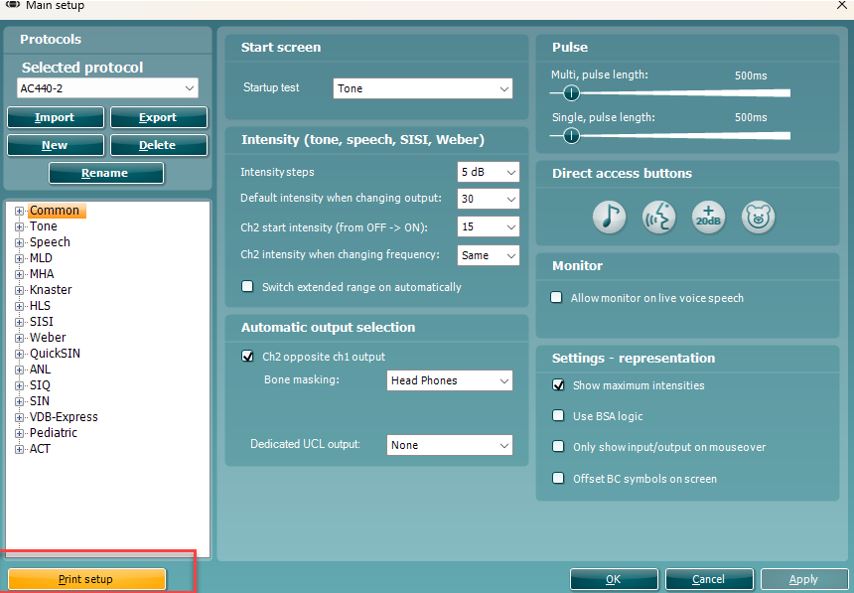
2: If you want to create a template or select an existing one to link to a specific protocol, select Menu | Setup | AC440 setup. Select the specific protocol from the drop-down menu and select Print setup at the bottom of the window (Figure 1).
The Print Wizard opens in a new window (Figure 2).
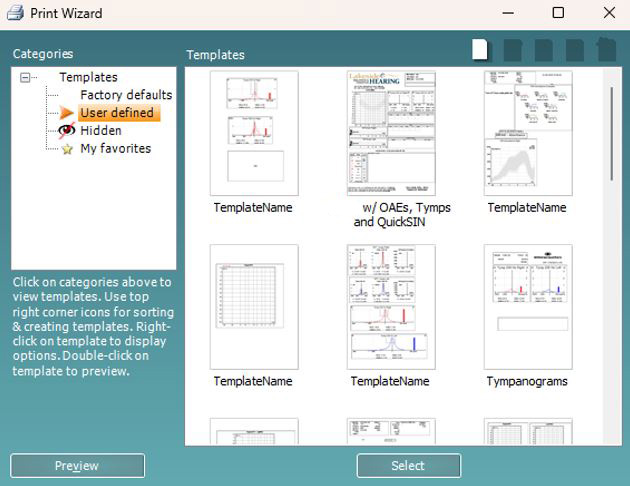
From here it is possible to select factory default print templates or create user defined templates. For more information, read the Equinox Evo Additional Information.
How to customize printout setup
The Equinox Suite allows custom print layouts to be created and used alongside the ViotTM, Titan and Affinity suites. This enables data from various tests to be combined into one convenient printout.
Open the Equinox Suite from your patient management system: Noah, OtoAccess®, or standalone.
Select Menu | Setup | AC440 Setup. A new window will open.
In the new window, you will find Print Setup in the bottom left corner. Please press this to open the Print Wizard.
Now that you are in the Print Wizard, you will see the screen below.
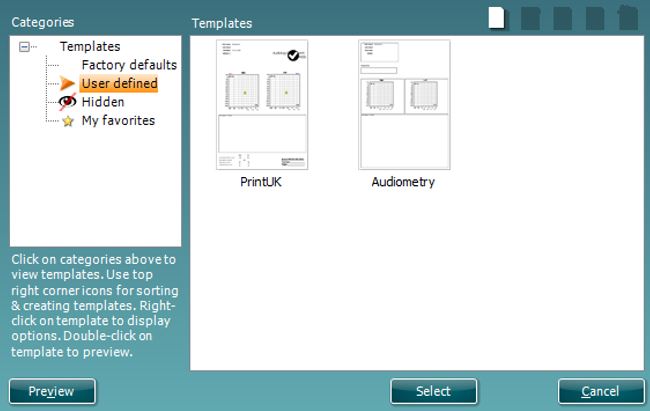
Click on the blank page in the top right of the screen to create a new print layout. This action will open a new screen. You can alternatively right click on an existing print layout and select Edit to continue building it.
Once in this new screen, you will see the elements which you can add to the layout on the left of the screen. These are ordered by their corresponding test module, for example everything to input into the print template to do with the AUD module can be found under AUD.
For further information, read the Equinox Evo Additional Information.
How to print without a database
There are three options for printing without a database. Note: The Equinox Suite allows for uploading onto the computer, it is not a database.
Option 1: Set your printer to default PDF print
To do this, navigate to your computer system's printer and scanner's folder. Once you are in your settings, you can click on 'Microsoft Print to PDF' and then select 'Set as Default'.
Option 2: Use a dedicated print layout to print client details
When testing in the Equinox Suite or after you have uploaded your results into your Interacoustics software, you are able to enter patient details into the comments box, located on the left-hand menu at the bottom (Figure 4).

By clicking on the white box, you can type in notes. This should include Patient Name, ID, DOB and any other identifying information you wish to print out on the client test results. Once finished, you are now ready to print the results, either to PDF as provided in Option 1, or to hardcopy.
Select Menu | Print | Print Wizard | Factory Defaults. Here you need to ensure that you are selecting a print layout which has the AUD report (Comments) included.
Option 3: Create a customized print layout
Your software already comes with preloaded print layouts. However, they may not be the layout you desire. It is possible to create your own design.
To get you started when you are ready to print, select Menu | Print | Print Wizard and click on the white box in the top right-hand corner to create a new template. You can now add all the necessary items to your layout as you wish.
For further information, read the Equinox Evo Additional Information.
Presenter
