
QuickSIN Test
QuickSIN for the AUD440 module
1. Select QuickSIN
To enable QuickSIN testing from your Audiometry Screen, select: Menu →Test->QuickSIN
2. Transducer
QuickSIN can be performed using the headphones (right or left ear). Please select Right, Left or FF1 (speaker) from the drop down list in Channel 1.
3. Presentation level
You may choose your own preferred test level. (Recommendation: 70dB HL level for a client with a pure tone average of 45dB or below. For pure tone average above 50dB HL, we recommend a level judged to be loud, but not discomforting, for your client). Increase intensity to 70dB or preferred level - for FF1 (speaker) testing please increase to around 78dB with the speaker placed around 50 cm away from client.
4. Patient instructions
"Imagine that you are at a party. There will be a woman talking and several other talkers in the background. The woman's voice is easy to hear at first, because her voice is louder than the others. Repeat each sentence the woman says. The background talkers will gradually become louder, making it difficult to understand the woman's voice, but please guess and repeat as much of each sentence as possible."
Note: It may help to stress to the client to repeat what they have heard, even if they have only heard one word from the sentence as this may improve their score.
QuickSIN methodology
A list of six sentences with five key words per sentence is presented in four-talker babble noise. The sentences are presented at pre-recorded signal-to-noise ratios which decrease in 5-dB steps from 25 (very easy) to 0 (extremely difficult). The SNRs used are: 25, 20, 15,10, 5 and 0, encompassing normal to severely impaired performance in noise.
There are up to 3 practice lists to help familiarise the test for the client, lists 1-12 are to be used for basic QuickSIN testing and they can be selected from the drop down menu highlighted below.
Please select your list from this drop down menu: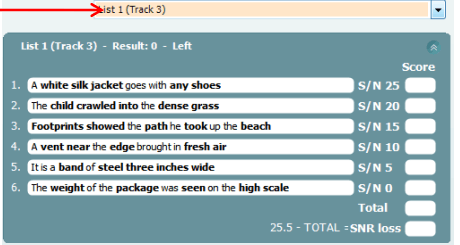
Press start to begin the first sentence on the selected list. The next sentence will automatically play once you have scored the previous sentence.
QuickSIN scoring
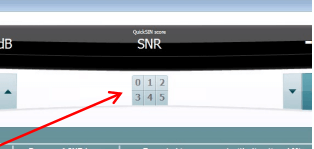
In each list there are 6 sentences, and in each sentence there will be 5 key words highlighted in bold. You must score the client on how many of these key words the client correctly repeats back to you. Please score using the scoring screen on the top-centre of the screen and the Affinity 2.0 will automatically move on to the next sentence.
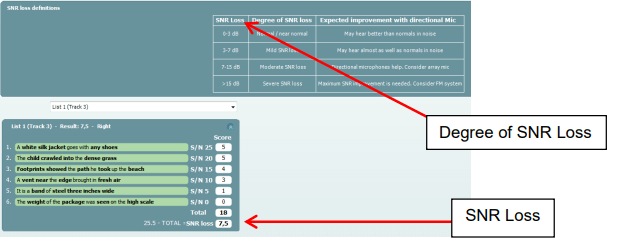
Once the last sentence has been scored using the numbers above, a total and SNR loss will be given. The SNR loss is the difference in the patient's performance in noise compared to normal hearing persons' performance in noise. The SNR Loss is the score used to quantify the client's difficulties and used to report the loss in dB. This score can be used to categorise the client's degree of SNR Loss and the expected improvements with directional mics can be seen in the graph below.
Averaging several QuickSIN lists (only lists 1-12 at the same intensity level) will improve the reliability of the results. This will be particularly useful for comparing two conditions i.e. Aided vs. Unaided or before and after hearing aid adjustments have been made.
We do not recommend you save the QuickSIN results in the Affinity 2.0 AC440 as this will save as a blank audiogram in your Noah system. The results should be used to report in the client's notes i.e. client has a 12.5 dB SNR Loss at 70dB HL in the right ear. If you would like to save the results in your Noah session please ensure the clients Audiogram is inputted in the 'tone audiometry' screen.
Additional QuickSIN features
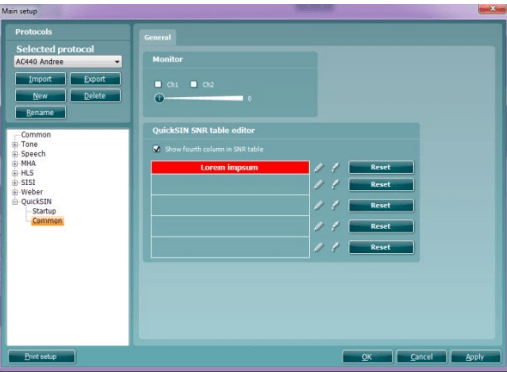
1. Adding a fourth column to the SNR loss definitions table
-
- Go to: Menu → Setup → AC440 → Main Setup → QuickSIN → Common
- and insert a checkmark in the "show fourth column" box
- Click on the pencil icon to enter text in the text box
- Click on the dropper icon to add colour to the text box
2. Aided QuickSIN is possible when selecting the free field transducer
To activate Aided QuickSIN:
-
-
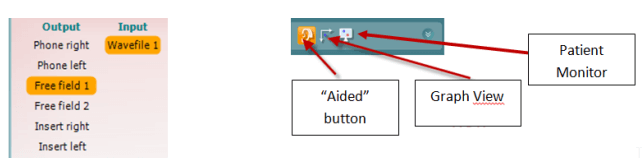
- Select Free Field as the Transducer; this will activate the "Aided" Function
- Click on the Aided button; this will add an extra column on to the QuickSIN scoring table
- Clinicians will then be able to compare the Unaided and Aided SNR scores. To view the scores in a graph view, click on the graph icon
- Results can also be shown on the Patient Monitor
-
Learn more
To learn more about QuickSIN testing, please read the QuickSIN manual.
Presenter
